How to Create an XML Sitemap and Submit It to Google Search Console
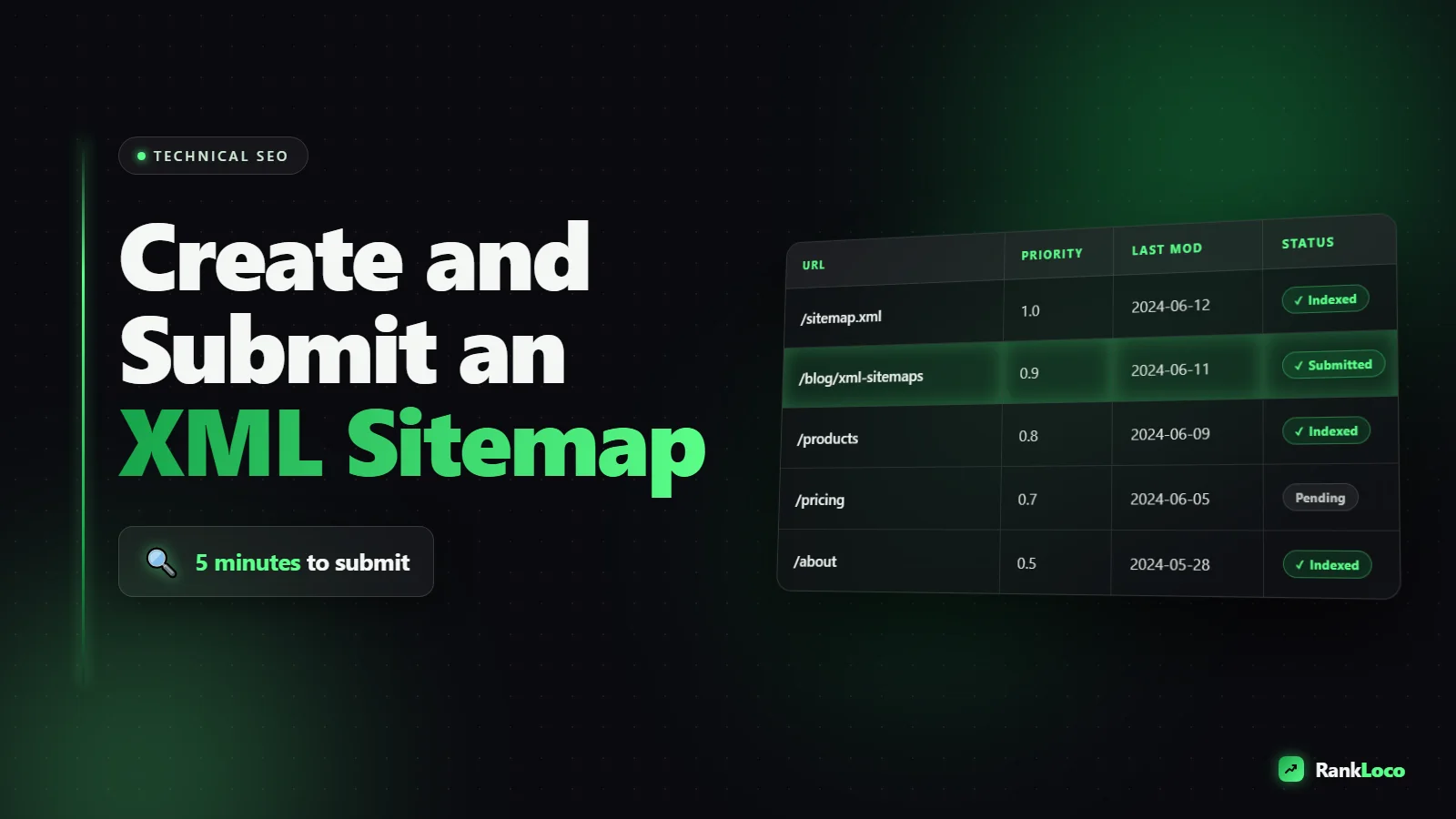
To create and submit an XML sitemap to Google, generate a sitemap file (most CMS platforms and SEO plugins do this automatically at a URL like yoursite.com/sitemap.xml), confirm it lists your indexable pages, then open Google Search Console, go to the Sitemaps report in the left menu, enter your sitemap path, and click Submit. Google will fetch the file, report how many URLs it found, and use it as a crawl roadmap. The whole process takes about five minutes once the file exists.
That is the short version. Below is the full process: how to build a sitemap on any platform, what belongs in it (and what absolutely does not), how to submit and verify it, and how to read the report so you catch problems before they cost you rankings.
What an XML Sitemap Actually Does (And What It Does Not)
An XML sitemap is a file that lists the URLs on your site you want search engines to crawl and index. It is a suggestion, not a command. Google uses it to discover pages faster and to understand which URLs you consider canonical and important, especially on large sites or sites with weak internal linking.
Here is what a sitemap does not do, because this trips people up constantly:
- It does not guarantee indexing. A URL in your sitemap can still be excluded if Google judges it low quality, duplicate, or thin.
- It does not fix a site that nobody links to. Internal and external links still drive crawl priority.
- It does not replace good site structure. It supplements it.
Think of it as handing Google a clean table of contents. If the content behind the links is weak, a tidy table of contents will not save it. But if your content is solid and some pages are buried, a sitemap genuinely speeds up discovery.
What to Include in Your XML Sitemap
The golden rule: a sitemap should only list canonical, indexable, 200-status URLs that you actually want in search results. Every URL in the file should be one you would be happy to see rank.
| Include | Exclude |
|---|---|
| Published pages and posts | Noindex pages |
| Category and product pages you want ranked | Redirected URLs (301/302) |
| Canonical versions only | Pages blocked by robots.txt |
| Important landing pages | 404 and error pages |
| Cornerstone blog content | Duplicate or parameter URLs |
| Thin tag/author archive pages |
The biggest mistake I see is a sitemap full of URLs that conflict with your own signals: a page is in the sitemap but also carries a noindex tag, or it redirects somewhere else, or it points its canonical at a different URL. Google treats that as a mixed message and may ignore the sitemap hint entirely. If you are dealing with duplicate URLs, sort that out first with proper canonical tags to fix duplicate content issues before you submit anything.
How to Create an XML Sitemap on Any Platform
You almost never need to build a sitemap by hand. Here is how to get one on the most common setups.
WordPress
WordPress generates a basic sitemap by default at yoursite.com/wp-sitemap.xml since version 5.5. It works, but it is bare bones. For real control, use an SEO plugin:
- Yoast SEO: sitemap lives at /sitemap_index.xml. Go to Yoast settings to toggle which content types and taxonomies are included.
- Rank Math: sitemap at /sitemap_index.xml, with similar per-type controls under Sitemap Settings.
Both plugins let you exclude thin archive pages (author, tag, date archives) that pad your sitemap with low-value URLs. Turn those off unless they genuinely rank.
Shopify
Shopify auto-generates a sitemap at yourstore.com/sitemap.xml and you cannot edit it directly on standard plans. It includes products, collections, pages, and blog posts. To keep a product out, set it to a status that removes it from the sitemap or use the theme to apply noindex.
Wix and Squarespace
Both create a sitemap automatically at /sitemap.xml. You control inclusion by toggling individual pages' visibility and index settings in each page's SEO panel.
Custom or static sites
For hand-coded or static sites, use a crawler-based generator (there are free online XML sitemap generators) or a build-time plugin for frameworks like Next.js, Hugo, or Jekyll. A valid URL entry looks like this:
- loc: the full URL
- lastmod: the date it was last meaningfully changed (optional but useful)
Skip priority and changefreq tags. Google has publicly said it ignores them, so they are wasted effort.
Sitemap index files for big sites
A single sitemap file can hold up to 50,000 URLs or 50MB uncompressed. If you exceed that, split into multiple sitemaps and reference them in a sitemap index file. Most plugins (like Yoast and Rank Math) do this automatically, which is why their main URL ends in sitemap_index.xml.
How to Submit Your XML Sitemap to Google Search Console
Once your sitemap exists and loads in a browser, submitting it takes under a minute. You need a verified Search Console property first. If you have not set that up, do it now, because it is the single most important free tool for SEO.
- Log in to Google Search Console and select the correct property.
- In the left sidebar, under Indexing, click Sitemaps.
- In the "Add a new sitemap" field, enter the path after your domain. Usually just sitemap.xml or sitemap_index.xml (Search Console pre-fills your domain).
- Click Submit.
- Wait a few seconds. The status should change to Success and show the number of discovered URLs.
That is it. You do not need to resubmit every time you publish a page. Google re-crawls the sitemap on its own schedule. Only resubmit if you move the sitemap to a new URL or make a major structural change.
Also reference it in robots.txt
Add one line to your robots.txt file so every crawler (not just Google) can find the sitemap:
- Sitemap: https://yoursite.com/sitemap.xml
Put it on its own line, use the absolute URL, and you are covered for Bing and other engines without extra submissions.
How to Read the Sitemaps Report and Fix Problems
After submission, the Sitemaps report shows status, the date Google last read it, and discovered URL count. A "Couldn't fetch" error usually means one of these:
- The URL you entered is wrong or the file returns a 404.
- Robots.txt is blocking the sitemap path.
- The file has XML syntax errors.
- You submitted too soon after creating it (wait, then click the sitemap and hit refresh).
The discovered-URL number matters, but the real story is in the Pages (Indexing) report. Compare how many URLs you submitted against how many are actually indexed. A big gap means pages are being discovered but not indexed, which points to quality, duplication, or crawl issues rather than a sitemap problem. Dig into the specific reasons there and work through any crawl errors reported in Google Search Console that show up.
XML Sitemap Best Practices Checklist
Run through this list before and after you submit:
- Only canonical URLs: no redirects, no parameter duplicates, no www/non-www mismatches.
- Only indexable URLs: nothing with a noindex tag or robots.txt block.
- Only 200-status pages: no 404s or soft 404s.
- Absolute URLs: full https:// addresses matching your canonical protocol and host.
- Accurate lastmod: update it only when content genuinely changes, not on every page load.
- Under 50,000 URLs / 50MB per file: split with an index file if larger.
- Referenced in robots.txt: one Sitemap: line with the absolute URL.
- Auto-updating: use a CMS or plugin that adds and removes URLs automatically so it never goes stale.
A stale sitemap that still lists pages you deleted six months ago sends Google chasing dead URLs. Automation solves this, which is why plugin-generated sitemaps beat manual ones for most sites.
Do Sitemaps Help New Pages Get Indexed Faster?
Yes, but it is one lever, not a magic button. A sitemap helps Google discover a new URL sooner, especially on sites with few internal links pointing to the fresh page. For a brand-new post, the fastest path combines a sitemap entry with strong internal links from existing indexed pages and a request through the URL Inspection tool. I walk through the full approach in this guide on how to get your new blog post indexed by Google faster.
If you want to track whether your sitemap work is actually moving pages into the index and lifting rankings, pair Search Console with a rank tracker. RankLoco runs technical site audits that flag sitemap conflicts (like indexed-but-not-submitted or noindexed-but-submitted URLs) and tracks your rankings over time so you can connect indexing fixes to real position gains. Browse more SEO guides if you want to go deeper on the technical side.
Frequently Asked Questions
How often should I update and resubmit my XML sitemap?
You rarely need to resubmit manually. If your sitemap auto-generates (via a CMS or SEO plugin), Google re-crawls it on its own and picks up new URLs. Only resubmit when you move the sitemap to a new URL, switch domains, or make a large structural change. The file itself should update automatically every time you publish or delete a page.
Why are my sitemap URLs discovered but not indexed?
Discovery and indexing are separate. If Google found your URLs but did not index them, the cause is usually content quality, duplication, or a crawl budget issue, not the sitemap. Check the Pages report in Search Console for the specific exclusion reason, confirm the pages are not thin or duplicate, and make sure they have internal links pointing to them.
Can I have more than one sitemap for the same site?
Yes. Large sites often split content into multiple sitemaps (posts, pages, products, images) and tie them together with a sitemap index file. You can submit the index file once in Search Console and Google reads all the child sitemaps from it. Keep each individual file under 50,000 URLs or 50MB uncompressed.
Do I need an XML sitemap for a small website?
Not strictly. If your site has a handful of pages all linked from the navigation, Google can crawl it fine without one. But a sitemap costs nothing to add, speeds up discovery of new content, and gives you a clear URL count to compare against indexed pages. For almost any site, the small effort is worth it.
What is the difference between an XML sitemap and an HTML sitemap?
An XML sitemap is machine-readable and built for search engines to crawl efficiently. An HTML sitemap is a human-readable page that lists links for visitors to navigate your site. They serve different purposes. For SEO and Search Console submission, you want the XML version. An HTML sitemap is optional and mainly helps usability on large sites.
Should I include images and videos in my sitemap?
You can, using image and video extensions within your sitemap, which helps those assets get discovered and appear in Google Images or video results. Most SEO plugins handle image sitemaps automatically. For video-heavy sites it is genuinely useful. For a standard blog, properly optimized images with good alt text and fast loading matter more than a dedicated image sitemap.