How to Get Your New Blog Post Indexed by Google Faster
To get a new blog post indexed by Google faster, submit the URL directly in Google Search Console using the URL Inspection tool and click "Request Indexing," make sure the page is linked from an already-indexed page on your site, and confirm your XML sitemap includes the new URL. This usually gets a post crawled within hours to a few days instead of the weeks it can take if you just wait. Below is the full process, plus what to do when a page still won't index.
Why indexing takes so long in the first place
Indexing is a two-step job. First Google has to crawl the page (visit it and read the HTML). Then it has to decide the page is worth adding to the index. On a brand-new or low-authority site, Googlebot crawls infrequently because it has no reason to check back often. So your post can sit there uncrawled for days or weeks.
The fixes below all attack one of two problems: helping Google find the URL faster, or giving Google a reason to think the URL matters. Do both and you cut the wait dramatically.
Step 1: Request indexing in Google Search Console
This is the single most reliable lever you have. If you haven't connected your site yet, follow our guide on how to set up Google Search Console for a new website first. Once verified:
- Open Search Console and select your property.
- Paste your new post's full URL into the URL Inspection bar at the top.
- Wait for the result. If it says "URL is not on Google," that's expected for a new post.
- Click Request Indexing. Google runs a live test and adds the URL to a priority crawl queue.
Requesting indexing does not guarantee inclusion, and it does not make you rank. It just moves your URL up the crawl line. Do it once per post. Spamming the button repeatedly does nothing useful and can get the feature rate-limited.
What to do if the URL Inspection shows an error
Before you request indexing, read the inspection report. Common blockers:
- "Blocked by robots.txt": your robots file is disallowing the path. Remove the rule.
- "Excluded by noindex tag": a meta robots noindex is on the page. Check your CMS SEO settings, this is common on WordPress and Shopify drafts.
- "Page with redirect": the URL redirects somewhere else. Submit the final destination URL instead.
- "Duplicate, Google chose different canonical": your canonical tag points elsewhere. Fix it to point to the page itself.
No amount of indexing requests will fix a page that technically tells Google to stay away. Clear the blocker first.
Step 2: Make sure the post is in your XML sitemap
Your sitemap is the master list Google uses to discover URLs. Most CMS platforms and SEO plugins add new posts automatically, but verify it. Open your sitemap (usually at /sitemap.xml or /sitemap_index.xml) and confirm the new URL is listed with a recent lastmod date.
If your sitemap isn't set up or submitted, walk through how to create an XML sitemap and submit it to Google. A submitted, clean sitemap is the difference between Google finding your posts on its own schedule and finding them fast. Resubmit the sitemap in Search Console after publishing a batch of posts to nudge a recrawl.
Step 3: Link to the new post from pages Google already crawls
Internal links are how Googlebot travels through your site. A new post with zero internal links is an orphan, and orphans get crawled last. The moment you publish, add links to it from:
- Your most-visited existing posts on the same topic
- Relevant pillar or category pages
- Your homepage or blog index (which Google crawls most often)
The higher-authority and more-frequently-crawled the linking page, the faster Google follows the link. If you're not sure how to wire this up, our guide on how to build an internal linking structure for a small blog covers exactly which pages to link from and what anchor text to use. Strong internal linking speeds up indexing and helps the post rank once it's in.
Step 4: Get the URL discovered off-site
Google crawls the wider web constantly. Getting your new URL to appear on pages Google already visits gives it more discovery paths:
- Share the post on social profiles that Google crawls (your own site's linked profiles count more than you'd think for discovery, not ranking).
- Link to it from an email newsletter that has a public web archive.
- Mention it in a relevant online community or forum where a link is genuinely useful (not spam).
- Add it to a resource page or roundup if it fits.
None of these are ranking signals on their own, but each is another trail for Googlebot to follow to your URL.
Step 5: Publish something worth indexing
Google is more selective than it used to be. Thin, duplicate, or near-worthless pages get crawled and then dropped into "Crawled - currently not indexed." To clear the quality bar:
- Make the post genuinely more complete than what's already ranking for the query.
- Cover the search intent fully. Start from a solid structure using our guide on how to write a blog post outline that ranks from search intent.
- Add unique information: your own data, examples, screenshots, or opinions.
- Avoid publishing 15 thin posts in a day. Google rate-limits crawl on sites that pump out low-value pages.
The fast-indexing checklist
| Action | Why it helps | Do it every time? |
|---|---|---|
| Request indexing in GSC | Priority crawl queue | Yes, once per post |
| Confirm URL in sitemap | Discovery + lastmod signal | Yes |
| Add 2-3 internal links | Crawl path from indexed pages | Yes |
| Check for noindex/robots block | Removes hard blockers | Yes |
| Share off-site | Extra discovery paths | When relevant |
| Resubmit sitemap | Nudges recrawl | After batches |
How long should indexing actually take?
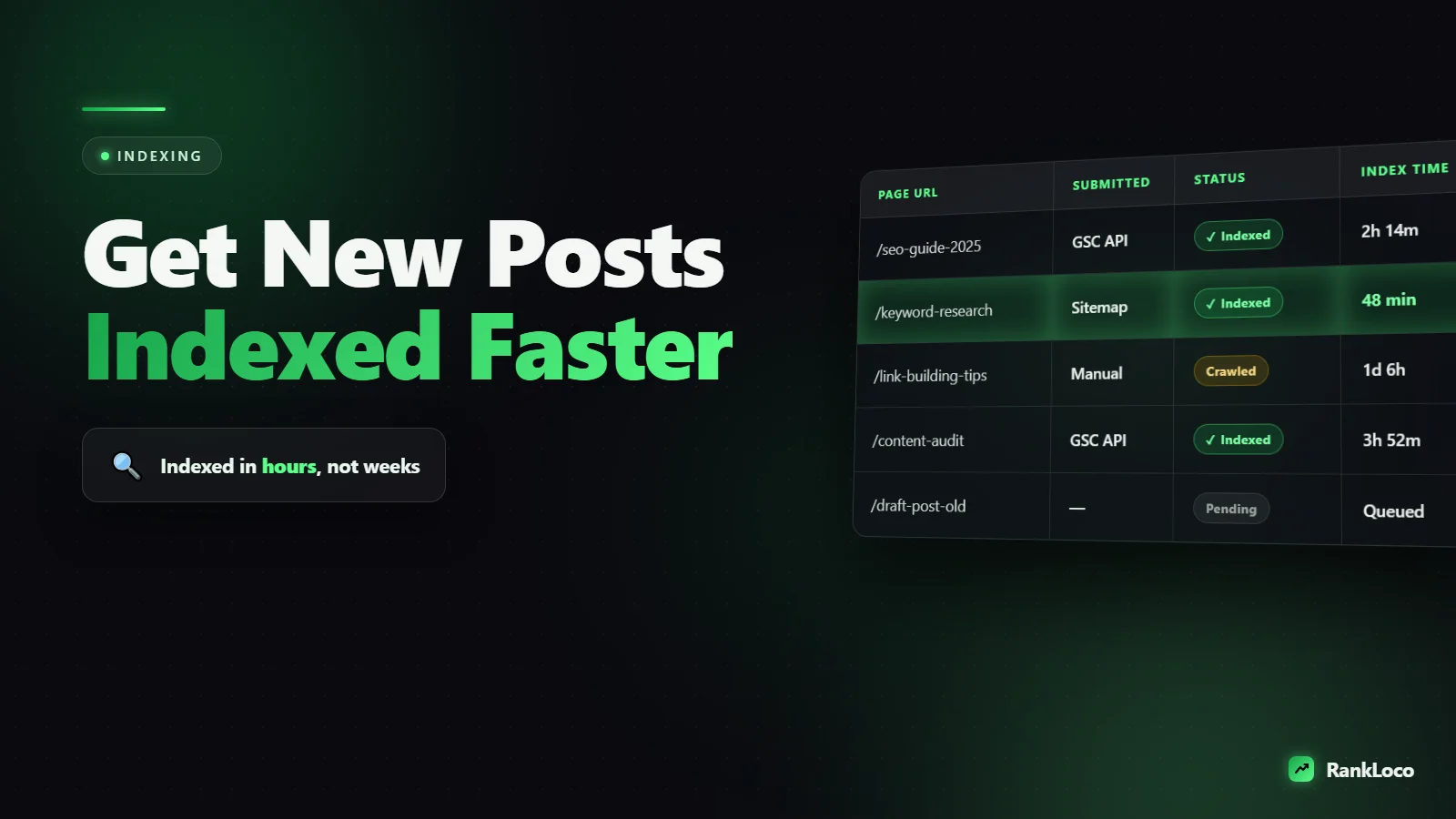
On an established site with regular publishing and good internal linking, a new post is often indexed within a few hours to two days. On a new site with little authority and few links, expect several days to two weeks even after requesting indexing. The pattern matters: if you publish consistently and Google sees fresh, useful content on a schedule, it crawls your site more aggressively over time. Erratic publishing gets erratic crawling.
What to do when a post won't index at all
If it's been over two weeks and the URL still shows "Crawled - currently not indexed" or "Discovered - currently not indexed" in Search Console, treat it as a quality or crawl-budget signal, not a technical accident. Work through this:
- Discovered but not crawled: usually a crawl-budget or server issue. Improve internal links to the page and check that your server responds fast.
- Crawled but not indexed: usually a quality or duplication issue. Expand the content, add unique value, and check you're not competing with your own pages. Our guide on how to find and fix keyword cannibalization helps here.
- Run a technical check: broken canonicals, slow load times, and rendering problems all suppress indexing. A full technical SEO audit for a small business website will surface most of these.
Once a page is indexed but still not showing up in results, that's a different problem. See how to fix pages that are indexed but not ranking.
Track what actually gets indexed and ranked
Requesting indexing is step one. The real goal is ranking, so watch each new post after it goes live. Use the Pages report in Search Console to confirm indexed status, then track the target keyword's position over time. This is where a rank tracker like RankLoco earns its keep: you'll see the day a post enters the index and starts climbing, and you'll catch posts that got indexed but stalled so you can update them. For more indexing and crawl guides, browse the RankLoco blog.
Frequently Asked Questions
How do I force Google to index my page immediately?
You can't force instant indexing, but requesting indexing in Google Search Console's URL Inspection tool is the fastest path. It puts your URL in a priority crawl queue, often getting it crawled within hours. There's no legitimate way to guarantee same-second indexing, and any tool claiming to do so is not to be trusted.
Does requesting indexing help my rankings?
No. Requesting indexing only affects how quickly Google crawls and considers the page. It has zero direct impact on where the page ranks. Rankings depend on content quality, relevance, internal links, and backlinks. Get the page indexed first, then focus on optimizing it to rank.
Why does Google say "Discovered - currently not indexed"?
This means Google knows the URL exists (usually from your sitemap) but hasn't crawled it yet, typically due to limited crawl budget on low-authority sites or slow server response. Fix it by adding internal links from frequently crawled pages, improving site speed, and publishing consistently so Google crawls you more often.
How often should I resubmit my sitemap?
You don't need to resubmit after every single post if your sitemap updates automatically, which most do. Resubmit manually after publishing a batch of new content, doing a large site migration, or fixing a sitemap error. Google rechecks submitted sitemaps regularly on its own.
Do social media shares help get a post indexed faster?
Indirectly, yes. Most social links are nofollow and don't pass ranking value, but they create additional public pages that Google crawls, giving Googlebot more paths to discover your URL. Sharing won't beat requesting indexing in Search Console, but it's a useful supplement, especially for newer sites.
Can too many new posts slow down indexing?
Yes. Publishing a large volume of thin or low-value posts at once can cause Google to rate-limit crawling of your site and leave many pages in "Crawled - currently not indexed." Prioritize quality over quantity, and make sure each post offers something genuinely useful before you hit publish.