How to Fix Mobile Usability Issues That Hurt Your Rankings
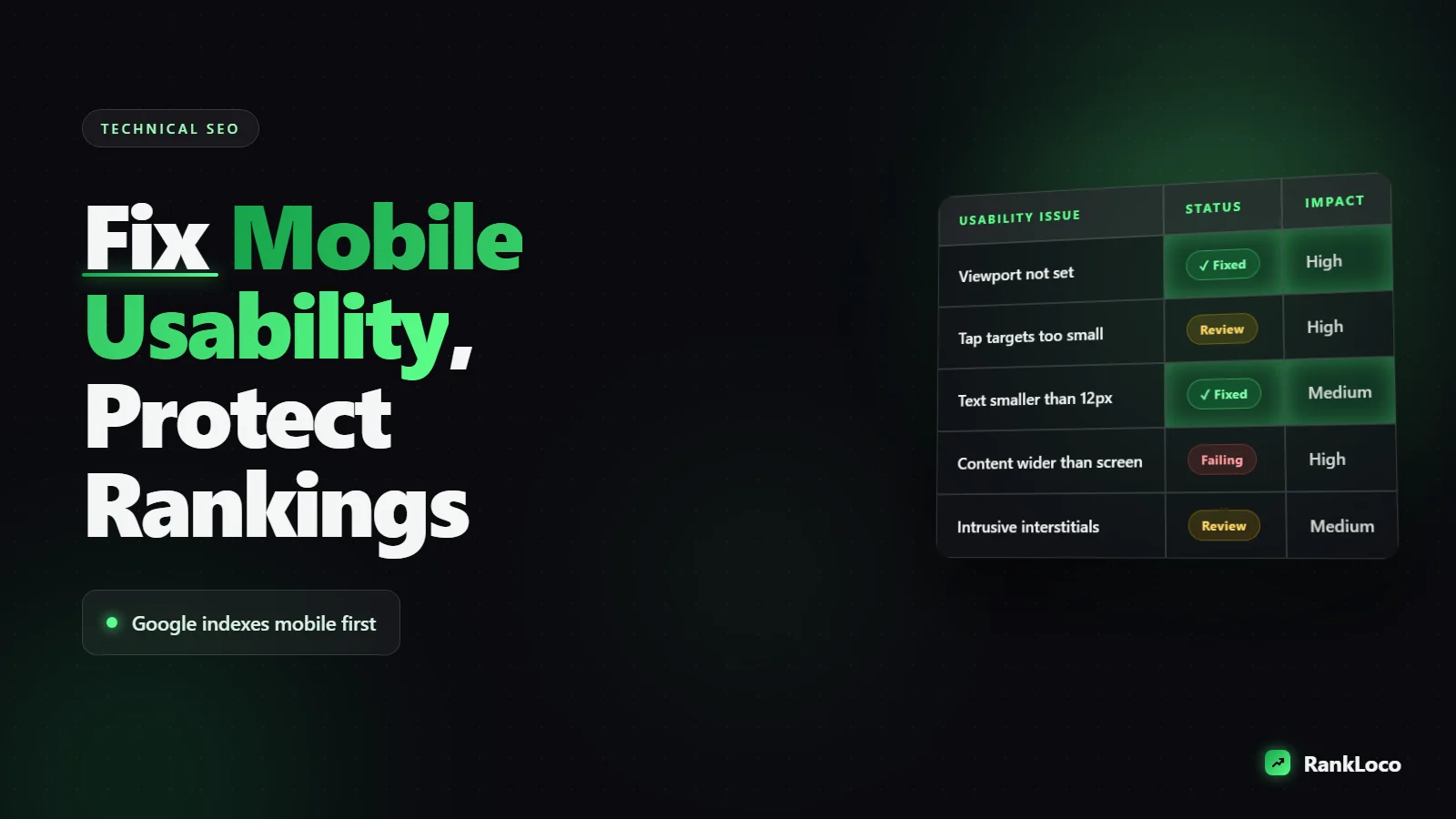
To fix mobile usability issues for SEO, start by running your pages through Google Search Console's Page Experience and Core Web Vitals reports, then fix the most common culprits: a missing responsive viewport tag, tap targets that are too close together, text smaller than 16px, content wider than the screen, and intrusive popups. Google indexes your mobile version first, so a page that frustrates a phone user is a page that loses rankings. The fixes below are specific and mostly take minutes each.
Here is the thing most people miss: mobile usability is not one setting. It is a stack of small failures that add up. A cramped button here, a laggy load there, a popup that covers the content. Fix them systematically and you remove a real ranking drag.
Why Mobile Usability Directly Affects Your SEO
Google switched to mobile-first indexing years ago. That means the crawler primarily uses the mobile version of your page to decide what to rank and how high. If your mobile page hides content, loads slowly, or is hard to interact with, that is the version Google judges you on, even for desktop searchers.
Usability feeds into rankings two ways. First, through the page experience signals Google measures directly (Core Web Vitals, mobile friendliness, HTTPS, no intrusive interstitials). Second, through behavior: when mobile users bounce back to the results because your page is painful, that pogo-sticking tells Google the result did not satisfy the query. Neither signal is huge on its own, but combined on a weak page they are enough to keep you off page one.
How to Diagnose Mobile Usability Problems First
Do not guess. Pull the data before you touch code. Here is the order I use:
- Google Search Console: Open the Page Experience and Core Web Vitals reports. Filter to the Mobile tab. GSC flags URLs with poor experience and groups them by issue type.
- PageSpeed Insights: Run your top five pages. It gives you both lab and field (real user) data plus a prioritized list of mobile fixes.
- The real-device test: Open your site on an actual phone, on cellular data, not office WiFi. Tap every button. Scroll every section. You will find problems no tool reports.
- Chrome DevTools device mode: Emulate an iPhone and Pixel to catch layout breaks and horizontal scroll quickly.
Group what you find into three buckets: layout and tap problems, text and readability problems, and speed problems. Then work through each.
How to Fix the Most Common Mobile Usability Issues
1. Add or correct the responsive viewport tag
If one fix matters most, it is this. Without a viewport meta tag, mobile browsers render your page at desktop width and shrink it, making everything tiny. Add this inside your <head>:
<meta name="viewport" content="width=device-width, initial-scale=1">
Do not set maximum-scale=1 or user-scalable=no. Disabling zoom is an accessibility failure and Google can flag it. Let people pinch-zoom.
2. Fix tap targets that are too small or too close
Buttons, links, and form fields need to be at least 48 by 48 CSS pixels with about 8px of space around them. Fingers are not cursors. The usual offenders are stacked footer links, menu items jammed together, and tiny social icons.
Give nav links adequate padding (not just font size), space out any list of links, and make sure your primary call-to-action button is thumb-friendly. Test by tapping with your actual thumb, not a fingertip, on a phone.
3. Make text readable without zooming
Body text should be at least 16px. Anything smaller forces users to zoom, which Google counts as a usability failure. Set a sane base font size, use relative units (rem) so it scales, and keep line length comfortable. Grey text on a light grey background is technically there but practically unreadable on a sunny day outdoors, which is where half your mobile traffic is.
4. Eliminate horizontal scrolling and content wider than the screen
Content wider than the viewport is a classic mobile-friendly failure. It is almost always caused by a fixed-width element: an image without max-width: 100%, a wide table, an embedded iframe, or a hardcoded pixel width in CSS. Add this as a safety net and then hunt the specific element:
img, video, iframe, table { max-width: 100%; }
For data tables, wrap them in a scrollable container so the table scrolls inside its own box instead of blowing out the page.
5. Remove intrusive interstitials and popups
Google explicitly penalizes intrusive interstitials on mobile: popups that cover the main content right after a user arrives from search, standalone interstitials you must dismiss before reading, and above-the-fold ads that push content down. You can still use cookie notices, age gates, and small banners. Just do not block the content someone searched for. Delay email popups until the user has scrolled or spent time on the page, and keep them easy to close.
6. Keep buttons and forms usable with thumbs
Use proper input types (type="email", type="tel", type="number") so mobile keyboards switch to the right layout. Enable autocomplete. Keep forms short. Put labels above fields, not beside them, so they do not get cut off on narrow screens.
How to Fix Mobile Speed Without a Developer
Speed is usability. A page that takes six seconds on 4G loses people before they ever interact. Most mobile speed problems trace back to a handful of causes, and you can fix several yourself.
| Problem | Symptom | Fix |
|---|---|---|
| Oversized images | Slow LCP, large page weight | Compress and serve WebP, add width/height attributes |
| Render-blocking scripts | Blank screen, slow first paint | Defer non-critical JS, remove unused plugins |
| No caching | Repeat visits slow | Enable browser and page caching |
| Layout shift | Content jumps as it loads | Set dimensions on images, ads, and embeds |
| Too many third-party scripts | Laggy, janky interaction | Audit and cut trackers and chat widgets |
Images are usually the single biggest win. If you have not already, work through our guide on how to optimize images for SEO so they load faster and rank higher. For the broader speed picture on WordPress, the steps in our walkthrough on how to improve Core Web Vitals on a WordPress site cover caching, lazy loading, and script control in detail.
How to Verify Your Mobile Fixes Are Working
Changes do not count until Google re-crawls and real users confirm the improvement. After you deploy fixes:
- Re-run PageSpeed Insights on the fixed pages to confirm the lab scores moved.
- Use the URL Inspection tool in Search Console, test the live URL, and request indexing so Google re-evaluates sooner.
- Watch Core Web Vitals field data over the next 28 days. Field data lags because it is based on real traffic, so give it time.
- Check that rankings and mobile CTR respond. This is where ongoing tracking matters. Monitor your target keywords with a tool like RankLoco so you can tie usability work to actual position changes instead of hoping it helped.
If some of the flagged URLs were never supposed to be indexed in the first place, clean that up too. Our guide on how to fix crawl errors reported in Google Search Console helps you separate real usability problems from noise.
A Mobile Usability Audit Checklist
Run this on every important template (homepage, service page, blog post, product page). If you can tick all of these, mobile usability is no longer dragging your rankings.
- Responsive viewport meta tag present, zoom not disabled
- Body text 16px or larger with good contrast
- Tap targets at least 48px with spacing between them
- No horizontal scroll; nothing wider than the screen
- Images sized with width and height, compressed, served in WebP
- No intrusive popups covering content on arrival
- Forms use correct input types and short field counts
- LCP under 2.5s, CLS under 0.1, INP under 200ms on mobile field data
- Menu and navigation work with one thumb
- Clickable phone numbers and addresses on local pages
- Same content served to mobile as desktop (no hidden text that matters)
That last point is easy to overlook. If your desktop page has 1,500 words of helpful content but your mobile version collapses half of it into accordions that are not in the HTML, mobile-first indexing may only see the visible part. Make sure the full content is in the markup even if it is tucked behind a tap.
Mobile Usability Is Ongoing, Not One-and-Done
New plugins, redesigns, ad scripts, and content updates all reintroduce mobile problems. Put a mobile check into your publishing routine: before any page goes live, open it on a phone and run the checklist above. Re-audit your top pages quarterly. For more technical and content fixes that compound over time, browse our other SEO guides and keep each template clean. Fast, usable mobile pages do not just avoid penalties. They convert better, which is the whole point.
Frequently Asked Questions
Does mobile usability affect desktop rankings too?
Yes. Because Google uses mobile-first indexing, it primarily evaluates your mobile version to rank pages for all devices. A broken mobile page can lower your position even for people searching on a laptop, since Google is judging the mobile content and experience by default.
How do I test if my site is mobile friendly?
Run your URLs through PageSpeed Insights and check the Mobile tab in Google Search Console's Page Experience and Core Web Vitals reports. Then open the site on a real phone over cellular data and tap through every button and form. Tools catch layout issues; real-device testing catches the rest.
Are popups bad for mobile SEO?
Intrusive ones are. Google penalizes popups that cover the main content immediately after arrival from search, full-screen interstitials, and above-the-fold banners that push content down. You can still use cookie notices, small banners, and delayed email signups that are easy to dismiss and do not block the content.
What is the ideal font size for mobile SEO?
Use at least 16px for body text. Smaller text forces users to pinch-zoom, which Google treats as a mobile usability failure. Pair it with strong color contrast and relative units (rem) so text scales cleanly across screen sizes and respects user accessibility settings.
How fast should a mobile page load?
Aim for Largest Contentful Paint under 2.5 seconds, Interaction to Next Paint under 200 milliseconds, and Cumulative Layout Shift under 0.1, measured on mobile field data. Most pages that fail are held back by large images and too many third-party scripts, both of which you can fix without a developer.
How long after fixing mobile issues will rankings improve?
Lab scores update immediately, but Core Web Vitals field data uses real traffic over a rolling 28-day window, so meaningful movement takes several weeks. Request re-indexing in Search Console to speed re-crawling, then track your keyword positions over the following month to confirm the fix helped.