How to Optimize Images for SEO to Load Faster and Rank Higher
To optimize images for SEO, compress and resize every image before upload, save it in a next-gen format like WebP, give it a descriptive keyword-based file name, write accurate alt text, and lazy-load images below the fold. Done right, this cuts page weight, improves Core Web Vitals, and gets your images ranking in Google Images and web search. The rest of this guide walks through each step with exact settings and a checklist you can follow today.
Why image optimization affects rankings
Images are usually the single heaviest thing on a web page. On a typical blog post or product page, they account for more bytes than the HTML, CSS, and JavaScript combined. That matters for two reasons.
First, page speed is a ranking factor through Core Web Vitals. A large, uncompressed hero image is the most common cause of a poor Largest Contentful Paint (LCP) score. Second, Google Images is a real traffic source. For recipes, products, how-to guides, and anything visual, optimized images pull qualified visitors who never touched the main search results.
You do not need to obsess over every pixel. You need a repeatable process so no bloated image ever ships. Here is that process.
Step 1: Resize images to the dimensions you actually display
The biggest mistake I see is uploading a 4000px wide photo straight from a phone or stock site into a slot that displays at 800px. The browser downloads all four million pixels and throws most away. That is wasted bandwidth on every single page load.
Before anything else, resize the image to the maximum width it will ever display, plus a bit of headroom for high-density screens:
- Blog body images: 1200px to 1600px wide is plenty.
- Full-width hero images: 1920px to 2560px max.
- Thumbnails and logos: match the display size exactly (for example 300px).
You can resize in any editor, or let your CMS generate responsive sizes. WordPress, for example, automatically creates multiple sizes and serves the right one with srcset. Just make sure your theme actually uses it.
Step 2: Compress every image before upload
Compression removes data the human eye barely notices. For most photos you can cut file size by 60 to 80 percent with no visible quality loss.
Two types of compression exist:
- Lossy: throws away some data permanently. Best for photographs. Aim for 75 to 85 percent quality (or a target of under 150KB for body images).
- Lossless: keeps all data but strips metadata and reorganizes the file. Best for logos, screenshots, and graphics with flat colors.
Free tools like Squoosh, TinyPNG, and ImageOptim handle this well. If you run WordPress, a plugin like ShortPixel or Imagify compresses automatically on upload and can bulk-optimize your existing library.
Step 3: Use next-gen formats (WebP and AVIF)
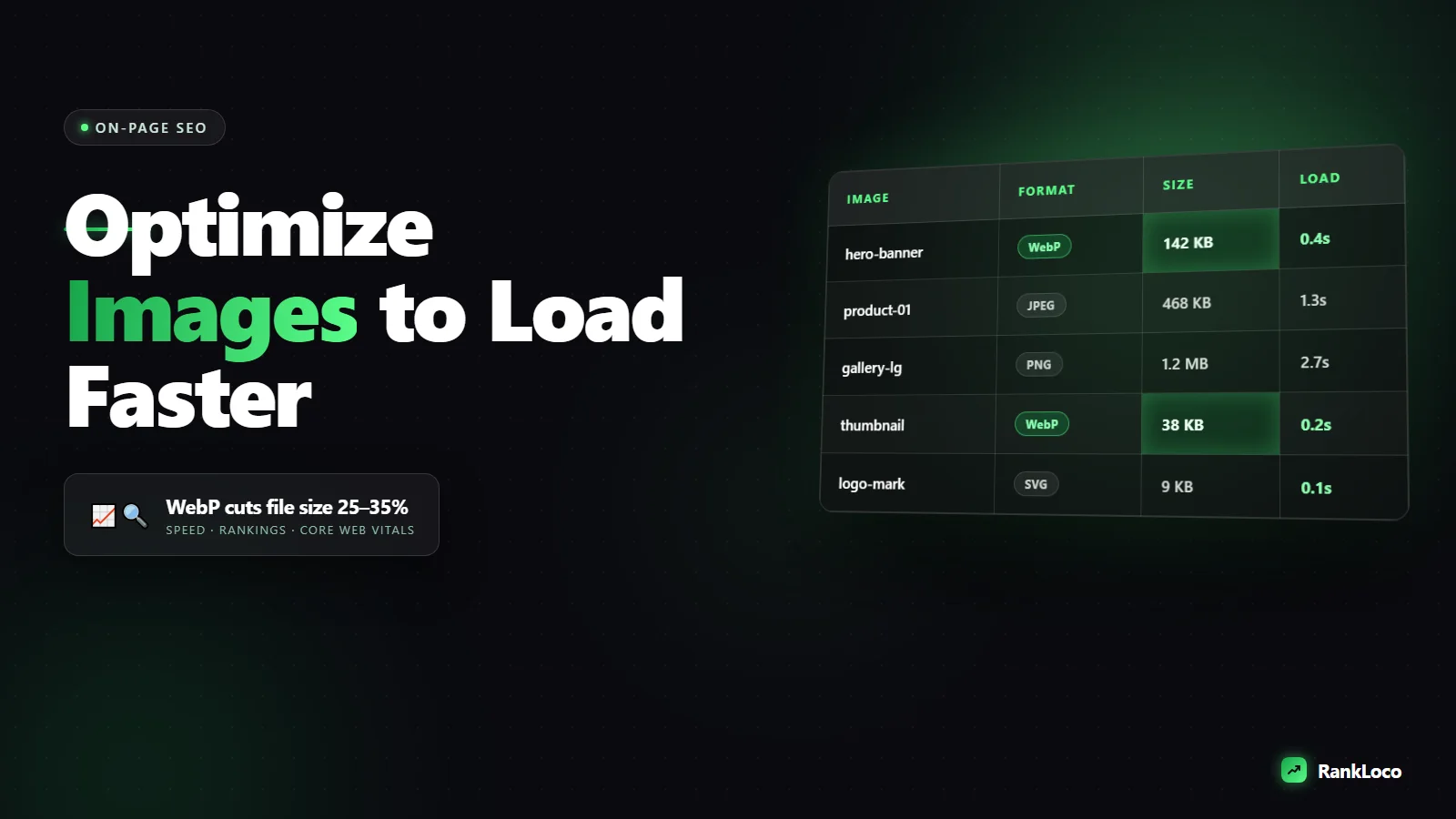
Modern formats compress far better than JPEG and PNG at the same quality. WebP typically saves 25 to 35 percent over JPEG, and AVIF often beats WebP. Both are supported in every current browser.
| Format | Best for | Notes |
|---|---|---|
| WebP | Photos and graphics | Great balance, universal support, easy default choice |
| AVIF | Photos where size matters most | Smaller files, slightly slower to encode |
| JPEG | Fallback for old systems | Fine if you cannot generate WebP |
| PNG | Images needing transparency (or use WebP) | Large; avoid for photos |
| SVG | Logos, icons, simple graphics | Scales infinitely, tiny file size |
Most optimization plugins convert to WebP automatically and serve it to browsers that support it. If you are hand-coding, use the <picture> element to offer WebP with a JPEG fallback.
Step 4: Write descriptive, keyword-rich file names
Google reads the file name. IMG_4821.jpg tells it nothing. blue-running-shoes-side-view.jpg tells it exactly what the image shows.
Rules for file names:
- Use lowercase letters and hyphens between words (never spaces or underscores).
- Describe what is in the image, using your target keyword when it fits naturally.
- Keep it short and specific. Three to five words is ideal.
This is the same discipline you apply to your page addresses. If you have not tightened those up, read our guide on how to structure URL slugs for better SEO, because file names and slugs both feed Google the same kind of context signals.
Step 5: Write alt text that describes the image accurately
Alt text (the alt attribute) serves two purposes: it describes the image to screen readers for accessibility, and it tells Google what the image shows. Both matter.
How to write good alt text:
- Describe the image the way you would to someone who cannot see it.
- Include your keyword when it genuinely fits, but never stuff it. "cheap best shoes shoes buy shoes" gets you nowhere.
- Skip "image of" or "picture of" at the start. Google already knows it is an image.
- Keep it under about 125 characters.
- Leave alt text empty (
alt="") for purely decorative images so screen readers skip them.
Bad: alt="shoes"
Good: alt="Blue trail running shoes with red laces on a rocky path"
Step 6: Lazy-load images below the fold
Lazy loading tells the browser to only load images when the user scrolls near them. This dramatically speeds up initial page load because the browser is not fetching ten images the visitor may never see.
Add loading="lazy" to your image tags. Most modern CMS platforms do this automatically now. One critical exception: never lazy-load your LCP image (usually the hero or first in-content image). Lazy-loading it delays the very thing Google measures, hurting your LCP score. Add loading="eager" or fetchpriority="high" to that one.
Step 7: Set width and height to prevent layout shift
When an image loads without declared dimensions, the page jumps as it appears, pushing content around. That is Cumulative Layout Shift (CLS), another Core Web Vitals metric.
Always include width and height attributes (or use CSS aspect-ratio) so the browser reserves the correct space before the image loads. This single fix clears up most CLS problems on image-heavy pages.
Image issues are one of the most common failures in a Core Web Vitals report. If your scores are struggling, our walkthrough on how to improve Core Web Vitals on a WordPress site covers the render-blocking and caching pieces that pair with image work.
Step 8: Add images to your XML sitemap and use structured data
Help Google discover and understand your images:
- Image sitemaps: most SEO plugins add image data to your sitemap automatically. This helps Google index images that load via JavaScript or CSS.
- Structured data: product, recipe, and article schema can include image properties, which makes your images eligible for rich results and image badges. See our guide on how to add schema markup to a WordPress site for the exact implementation.
Step 9: Serve images from a CDN
A content delivery network stores copies of your images on servers around the world and serves each visitor from the closest one. This cuts load time, especially for visitors far from your origin server. Cloudflare, Bunny, and most managed hosts include image CDN features, often with automatic format conversion and resizing on the fly.
The image SEO checklist
Run every image through this before it goes live:
- Resized to the maximum display width (no oversized files)
- Compressed (photos under ~150KB, quality 75 to 85 percent)
- Saved as WebP or AVIF with a fallback
- Descriptive, hyphenated, keyword-aware file name
- Accurate alt text under 125 characters
- Width and height attributes set to prevent layout shift
- Lazy loading on below-the-fold images, eager on the LCP image
- Included in your XML sitemap
- Served through a CDN where possible
How to find and fix your existing image problems
You do not have to reoptimize your whole library blind. Find the worst offenders first:
- Run a page through Google PageSpeed Insights. It flags oversized images and "properly size images" and "serve images in next-gen formats" opportunities with the exact files and potential savings.
- Run a crawl in a site audit tool. RankLoco's technical SEO audit approach catches images missing alt text, broken image links, and heavy files across every page at once, which is far faster than checking pages one by one.
- Check Google Search Console for Core Web Vitals issues grouped by URL pattern, then fix the template rather than individual pages.
Fix the templates and highest-traffic pages first. That is where speed gains move rankings and conversions the most. For the broader on-page work that image optimization supports, our guide on writing SEO friendly blog content ties the visual and text signals together, and you can browse more SEO guides for the rest. If you want a tool that tracks whether these fixes actually move your positions, RankLoco handles the auditing and rank tracking in one place.
Frequently Asked Questions
What is the best image format for SEO?
WebP is the best default choice for most websites. It compresses 25 to 35 percent smaller than JPEG at the same quality and is supported in every current browser. Use AVIF when you want the smallest possible files, SVG for logos and icons, and keep JPEG only as a fallback for older systems.
Does alt text really help SEO?
Yes. Alt text helps Google understand what an image shows, which is essential for ranking in Google Images and adds relevance context to the page. It also improves accessibility for screen reader users. Write it to describe the image accurately and include your keyword only when it fits naturally.
How small should my images be for fast loading?
Aim for under 150KB for standard body images and under 300KB for large hero images. Getting there is mostly about resizing to the actual display width and compressing at 75 to 85 percent quality in WebP. If a single image is over 500KB, it almost certainly needs work.
Should I lazy-load all my images?
Lazy-load images below the fold to speed up initial load, but never lazy-load your largest above-the-fold image (the LCP element). Delaying that image hurts your Largest Contentful Paint score. Give it loading="eager" or fetchpriority="high" instead so it loads immediately.
Do image file names matter for ranking?
Yes, though less than alt text. Google reads the file name as a signal of what the image contains. Use lowercase, hyphen-separated, descriptive names like red-leather-office-chair.jpg instead of camera defaults like IMG_2043.jpg. It is a small, easy win you should never skip.
How do I know if my images are slowing down my site?
Run the page through Google PageSpeed Insights and look for "properly size images" and "serve images in next-gen formats" flags, which name the exact files and potential savings. A full site crawl in an audit tool then shows heavy files, missing alt text, and broken images across every page at once.