How to Set Up Google Analytics 4 to Track Organic Search Traffic
To track organic traffic in Google Analytics 4, open Reports > Acquisition > Traffic acquisition, then filter the primary dimension to Session default channel group = Organic Search. That isolates every session Google, Bing, and other search engines send you. For deeper analysis, build an Exploration using the same filter, add Landing page and Sessions as your dimensions and metrics, and you can see exactly which pages pull search traffic. Everything below walks through the full setup step by step.
Why GA4 handles organic traffic differently than Universal Analytics
If you moved over from the old Universal Analytics, the report names changed and "organic search" is now a channel group instead of a medium. GA4 is event-based, not session-based at its core, so metrics like Sessions are calculated from events rather than being the primary unit. The practical upside: once you know where organic search lives, GA4 gives you cleaner landing page and engagement data than UA ever did.
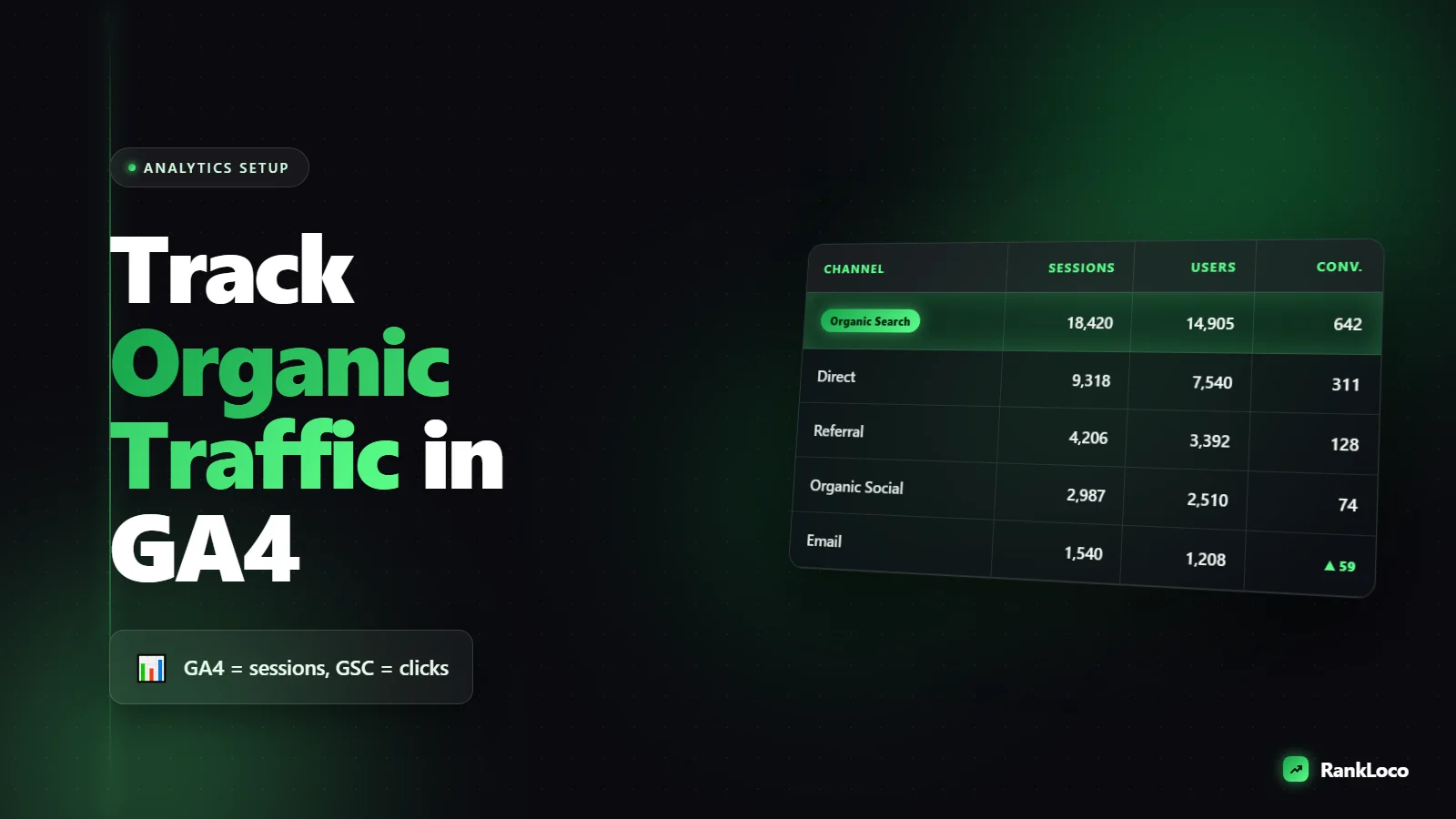
The key term to memorize is Session default channel group. GA4 auto-classifies every session into a bucket (Organic Search, Direct, Referral, Paid Search, Organic Social, Email, and so on) based on the source and medium. Organic Search means an unpaid click from a search engine. That is the number that measures your SEO.
Step 1: Confirm your GA4 tag is firing correctly
Before you trust any organic number, make sure GA4 is actually collecting data. Bad tag setup is the most common reason organic traffic looks wrong or shows up as "unassigned."
- In GA4, go to Admin > Data Streams and click your web stream.
- Check that the Measurement ID (starts with G-) matches the tag on your site.
- Use the Realtime report: open your site in an incognito window, click around, and confirm your visit appears within seconds.
- Install the Google Tag Assistant extension if Realtime shows nothing. It flags duplicate tags and misfires.
If you run WordPress, the tag usually lives in a plugin like Site Kit or in your theme header. Only one GA4 tag should fire per page. Two tags double-count sessions and wreck your data.
Step 2: View organic traffic in the Traffic Acquisition report
This is the fastest way to see organic search traffic in GA4.
- Go to Reports > Acquisition > Traffic acquisition.
- The default primary dimension is Session default channel group. You will see a row labeled Organic Search.
- Click that row, or use the search box above the table and type "Organic Search," to filter the whole report down to search traffic only.
- Set your date range in the top right and compare it to the previous period to spot trends.
The columns that matter most here are Sessions (visits from search), Engaged sessions (visits that lasted 10+ seconds, had a conversion, or 2+ page views), Average engagement time, and any Key events you have set up. Engaged sessions is GA4's version of "quality traffic," and it is far more useful than the old bounce rate.
Reading the numbers without fooling yourself
Organic Search sessions will always lag behind what Google Search Console reports as clicks. GA4 counts sessions after the page loads and the tag fires, so blocked cookies, ad blockers, and fast bounces before the tag loads all shave the number down. Do not panic over a 10 to 20 percent gap between GSC clicks and GA4 organic sessions. It is normal. Use GSC for keyword and query data, and GA4 for on-site behavior.
Step 3: Build a dedicated organic search Exploration
The standard report is fine for a quick look. For real analysis, build a custom Exploration you can save and reuse.
- Go to Explore in the left menu and pick a Blank exploration.
- Under Dimensions, click the plus and add Landing page + query string and Session default channel group.
- Under Metrics, add Sessions, Engaged sessions, Average engagement time per session, and Key events.
- Drag Landing page + query string into Rows.
- Drag your metrics into Values.
- In the Filters panel, add: Session default channel group exactly matches Organic Search.
Now you have a page-by-page view of which URLs earn organic visits and how people behave once they land. Save it. This is the single most useful SEO report in GA4, and it pairs directly with the work in our guide on how to find your top organic landing pages and what to do with them.
Step 4: Create a comparison so organic is always one click away
If you check performance often, set up a saved comparison so you never have to re-filter.
- In any standard report, click Add comparison + at the top.
- Set Dimension to Session default channel group, Match Type to exactly matches, and Value to Organic Search.
- Apply it. Every report you open now shows organic alongside the total, so you can see what share of a metric comes from search.
This is handy for conversions and revenue. You can instantly answer "how much of our leads came from organic search this month" without building anything.
Step 5: Connect Search Console to close the keyword gap
GA4 shows you behavior after the click. It does not show you the queries people searched or your ranking positions. Link Search Console to fill that gap.
- Go to Admin > Product links > Search Console links.
- Click Link, choose your verified Search Console property, and pick the web stream.
- After linking, publish the Search Console reports: go to Reports > Library (bottom left), find the Search Console collection, and click Publish.
You now get two reports: Queries (impressions, clicks, CTR, average position) and Google organic search traffic (which landing pages get search clicks). It is a lighter view than Search Console itself, but it keeps query data inside GA4 next to your engagement metrics.
What to actually do with your organic data
Tracking is pointless if you do not act on it. Here is a simple weekly and monthly routine.
| Frequency | What to check | Action to take |
|---|---|---|
| Weekly | Organic Search sessions vs prior week | Spot sudden drops early; check indexing and rankings if traffic dips |
| Weekly | Top landing pages by organic sessions | Protect and refresh your best performers first |
| Monthly | Engaged sessions and engagement time by page | Rewrite intros and improve pages with low engagement |
| Monthly | Key events / conversions from organic | Double down on pages that convert, not just pages with traffic |
| Quarterly | New vs returning organic users | Assess whether content is building an audience or just chasing clicks |
When a page shows strong organic sessions but weak engagement, that is a content-quality problem, not a traffic problem. Our guide on how to reduce bounce rate on blog pages covers the fixes. And if organic drops across the board, work through the diagnostic steps in why is my organic traffic dropping and how to diagnose it before you assume a penalty.
Fixing the most common GA4 organic tracking problems
Organic traffic showing as "Unassigned"
Unassigned sessions usually come from a missing or malformed source/medium, often from bad UTM tags or a tracking template that overrides referrer data. Check any campaign links and make sure you are not tagging internal links with UTMs, which reclassifies real organic visits.
Search traffic landing under Direct
If a chunk of what should be organic shows as Direct, the referrer is being stripped. This happens with some redirects, insecure http hops, and privacy tools. Make sure your whole site runs on HTTPS and that redirects preserve the referrer.
Numbers do not match Search Console
They never will exactly. GA4 counts sessions, GSC counts clicks, and their time zones and processing windows differ. Use each tool for its strength: GSC for queries and clicks, GA4 for on-site behavior and conversions.
Where rank tracking fits in
GA4 tells you how much organic traffic you got and what people did with it. It does not reliably tell you which keywords moved you up or down, because Search Console position data is averaged and delayed. To connect traffic changes to specific ranking movements, run dedicated rank tracking. RankLoco tracks your keyword positions daily so you can line up a traffic dip in GA4 with the exact terms that slipped, then prioritize fixes. Pair GA4 behavior data with the approach in our guide on how to track keyword rankings over time to measure progress, and you get the full picture: rankings, clicks, and what happens after the click. For more setup walkthroughs, browse the rest of our SEO guides.
Frequently Asked Questions
Where do I find organic traffic in GA4?
Go to Reports > Acquisition > Traffic acquisition and look for the row labeled Organic Search under Session default channel group. Click that row to filter the entire report to search traffic only. For page-level detail, build an Exploration filtered to Organic Search.
What is the difference between Organic Search and Direct in GA4?
Organic Search is an unpaid click from a search engine like Google or Bing. Direct means GA4 could not identify a referring source, so the visitor typed your URL, used a bookmark, or the referrer was stripped. If real search traffic keeps landing in Direct, check for HTTPS issues and referrer-losing redirects.
Why is my GA4 organic traffic lower than Search Console clicks?
GA4 counts sessions after the tag loads, while Search Console counts every click on your listing. Ad blockers, cookie rejections, and fast bounces before the tag fires all reduce GA4's number. A gap of 10 to 20 percent is normal. Use GSC for clicks and GA4 for behavior.
How do I track organic conversions in GA4?
First mark the events that matter (form submits, calls, purchases) as Key events in Admin > Events. Then add a comparison for Session default channel group exactly matches Organic Search, or filter an Exploration the same way. Your Key events column will then show conversions attributed to organic search.
Can I see which keywords drive organic traffic in GA4?
Only after you link Google Search Console to GA4. Once linked and published, the Queries report shows impressions, clicks, CTR, and average position. GA4 alone does not store keyword data, so Search Console (or a dedicated rank tracker) is required for query-level insight.
How often should I check organic traffic in GA4?
Check top-line organic sessions weekly to catch sudden drops early, and do a deeper page and conversion review monthly. Avoid daily obsessing, since GA4 data has a processing delay and short-term swings are usually noise, not trends.