How to Add Schema Markup to a WordPress Site Without a Plugin
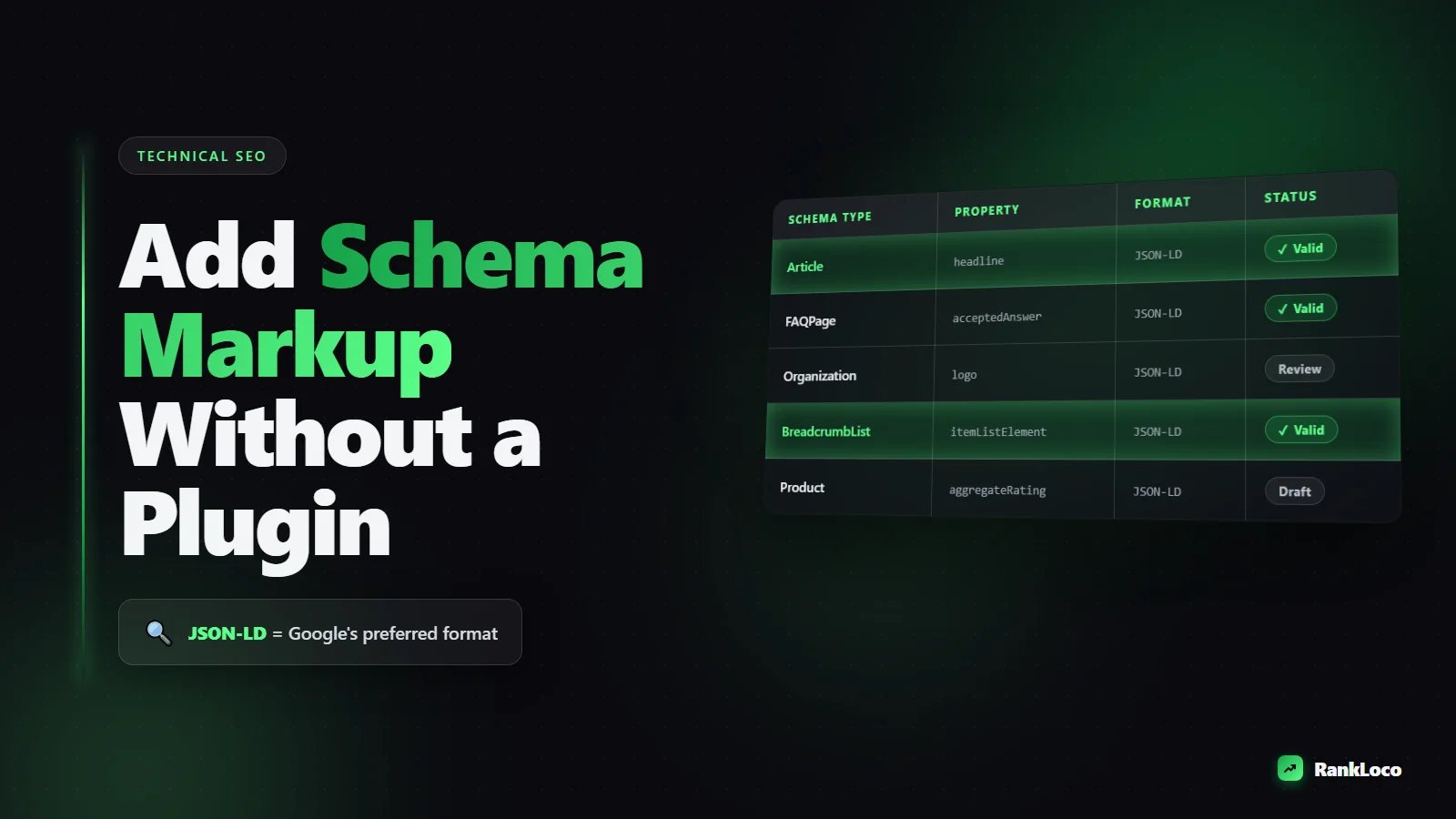
To add schema markup to WordPress without a plugin, paste JSON-LD code into your theme's functions.php file (or a code snippet in the <head>) so it outputs on the right pages, then validate it with Google's Rich Results Test. JSON-LD is Google's preferred format, it lives in a single script block, and you can generate it dynamically from post data like title, author, and publish date. No plugin needed, no bloat added.
Why Add Schema Markup Manually Instead of Using a Plugin
Plugins like Yoast and Rank Math bundle schema, but they add overhead, sometimes output schema you don't want, and can conflict with each other. Doing it by hand gives you three wins:
- Speed: No extra PHP loading on every request. This matters if you are already working to improve Core Web Vitals on your WordPress site.
- Control: You output exactly the properties you want, with no duplicate or conflicting markup.
- Clean code: One JSON-LD block per page, easy to debug in the Rich Results Test.
The tradeoff is you need to be comfortable editing a PHP file. If you can copy, paste, and change a few strings, you can do this.
What Schema Markup Actually Does for SEO
Schema (structured data) does not directly boost rankings. What it does is make your pages eligible for rich results: star ratings, FAQ dropdowns, breadcrumbs, article headlines with dates, recipe cards, and more. Those rich results take up more space in the SERP and pull more clicks, which is the same reason you should optimize your meta title and description for higher click-through rate. Schema is the technical layer that unlocks the visual upgrade.
Before You Touch Code: Back Up and Use a Child Theme
Editing functions.php can white-screen your site if you make a syntax error. Two safeguards:
- Back up your site (files and database) so you can roll back.
- Use a child theme. If you edit the parent theme directly, your changes get wiped on the next theme update. A child theme keeps your code safe.
Edit functions.php through your host's file manager or SFTP rather than the WordPress dashboard editor. That way a fatal error does not lock you out of the admin.
The Best Schema Format: Why JSON-LD Wins
There are three formats: JSON-LD, Microdata, and RDFa. Google explicitly recommends JSON-LD. It sits in a single <script type="application/ld+json"> block, usually in the head or footer, and does not tangle up your HTML markup. Microdata forces you to sprinkle attributes across your visible HTML, which is fragile and harder to maintain. Use JSON-LD for everything.
How to Add Article Schema to Blog Posts Without a Plugin
The most useful schema for a blog is Article (or BlogPosting). It tells Google the headline, author, publish date, and featured image. Add this function to your child theme's functions.php:
Paste this into functions.php:
- Hook into
wp_headso it prints in the head. - Check
is_single()so it only runs on posts. - Pull data dynamically from the current post.
Here is the logic in plain terms. Create a function that builds a PHP array with your @context, @type, headline, datePublished, dateModified, author, publisher, and mainEntityOfPage. Then output it with wp_json_encode() inside a script tag. Example structure:
| Property | What to feed it |
|---|---|
| @type | "BlogPosting" |
| headline | get_the_title() |
| datePublished | get_the_date('c') |
| dateModified | get_the_modified_date('c') |
| author | get_the_author() |
| image | get_the_post_thumbnail_url() |
| mainEntityOfPage | get_permalink() |
The function should conditionally run only on singular posts, build the array, then echo '<script type="application/ld+json">' . wp_json_encode($schema) . '</script>'. Hook it with add_action('wp_head', 'your_function_name'). Because it reads live post data, every new post gets correct schema automatically. That is the same set-it-and-forget-it benefit a plugin gives you, minus the plugin.
Watch Out for Required and Recommended Properties
Google's Article documentation lists headline, image, datePublished, and author as the properties that matter most. Missing an image is the most common warning. Make sure your posts have a featured image set, or hardcode a fallback logo URL so the schema never ships empty.
How to Add Organization and Website Schema to the Homepage
On your homepage, output Organization schema (or LocalBusiness if you serve a local area). This defines your brand name, logo, URL, and social profiles, which feeds the knowledge panel. Wrap it in a is_front_page() check so it only fires on the homepage. Include:
- name: your business name
- url: your homepage
- logo: a direct image URL (at least 112x112px)
- sameAs: an array of your social profile URLs
If you run a local business, use LocalBusiness and add address, telephone, and opening hours. This pairs well with the work in our guide on how to rank a local business without a physical store address, where consistent structured data reinforces your service area.
How to Add FAQ Schema Without a Plugin
FAQ schema can produce expandable question dropdowns in search. Only mark up FAQs that are genuinely visible on the page (Google's guidelines require the content to be present for users). The cleanest manual approach: build a function that accepts an array of question and answer pairs and outputs FAQPage JSON-LD.
Structure it as a mainEntity array where each item is a Question with a nested acceptedAnswer of type Answer. Call the function on the specific pages that have an FAQ section. Do not slap FAQ schema on every page. Google has pulled back FAQ rich results for many sites, so reserve it for pages where the Q&A adds real value.
How to Add Breadcrumb Schema for Better SERP Navigation
BreadcrumbList schema shows your site hierarchy in the search result instead of a raw URL. Build an itemListElement array where each entry has a position, name, and item (URL). On a post, that is usually Home > Category > Post Title. You can pull the category with get_the_category() and construct the trail dynamically. This is a small win that makes your listings look more organized and can nudge click-through.
How to Test and Validate Your Schema Markup
Never assume your code works. Validate it with these three tools:
| Tool | What it checks |
|---|---|
| Rich Results Test | Whether your page is eligible for specific rich results |
| Schema.org Validator | General syntax and property validity |
| Search Console (Enhancements) | Errors across your live site over time |
Run the Rich Results Test on a live URL after you deploy. Fix any errors (red) before worrying about warnings (yellow). Warnings are recommended properties, not deal-breakers, but errors can disqualify the whole rich result. After a week or two, check the Enhancements reports in Search Console to catch issues at scale. If you spot crawling problems along the way, our guide to fixing crawl errors reported in Google Search Console covers the next steps.
Schema Markup Deployment Checklist
- Backed up the site and set up a child theme
- Added Article/BlogPosting schema gated to
is_single() - Added Organization or LocalBusiness schema on the homepage
- Included required properties: headline, image, datePublished, author
- Added FAQ schema only on pages with visible Q&A content
- Added BreadcrumbList schema for post hierarchy
- Escaped output with
wp_json_encode()to avoid broken JSON - Validated every type in the Rich Results Test
- Checked the Enhancements reports in Search Console after indexing
Common Mistakes That Break Schema Markup
Three errors show up constantly when people hand-code schema:
- Marking up content that is not on the page. Schema must reflect visible content. Fake reviews or hidden FAQs violate guidelines and can trigger a manual action.
- Duplicate schema. If your theme or a leftover plugin already outputs Article schema, your manual version creates a conflict. Search your source for
application/ld+jsonbefore adding more. - Broken JSON from unescaped quotes. Always output through
wp_json_encode()rather than manually concatenating strings. A single stray quote invalidates the whole block.
Structured data is one piece of a healthy technical foundation. If you are auditing the rest, walk through our full technical SEO audit for a small business website, and keep an eye on how rich results affect your positions. You can watch those movements in RankLoco to see whether schema changes actually lift your click-through and rankings over time. For more implementation guides, browse the RankLoco blog.
Frequently Asked Questions
Does schema markup improve Google rankings?
Not directly. Schema does not send a ranking signal on its own. What it does is make your pages eligible for rich results (stars, FAQs, breadcrumbs) that increase visibility and click-through rate. More clicks and better engagement can indirectly help rankings, but schema is about SERP appearance, not raw position.
Where do I put JSON-LD schema code in WordPress?
Output it in the document head by hooking your function to wp_head in functions.php. It can technically appear in the head, body, or footer and Google will read it, but the head is cleanest and loads early. Use a child theme so updates do not overwrite your code.
Can I add schema without editing functions.php?
Yes. You can drop static JSON-LD directly into a page's HTML using a Custom HTML block in the Gutenberg editor. This works for one-off pages but does not scale, since the data will not update automatically. For blog posts, dynamic functions.php code is far more maintainable.
How do I know if my schema is working?
Run the URL through Google's Rich Results Test for eligibility, and the Schema.org Validator for syntax. After Google recrawls, check the Enhancements section in Search Console, which reports valid items, warnings, and errors across your whole site. Fix errors first, then address warnings.
Is JSON-LD better than Microdata for WordPress?
Yes. Google recommends JSON-LD because it lives in a single script block separate from your visible HTML, making it easier to add, edit, and debug. Microdata requires embedding attributes throughout your page markup, which is fragile and breaks easily when themes change layout.
Should I remove my SEO plugin's schema before adding my own?
If your plugin outputs the same schema type, yes, disable that specific feature to avoid duplicates. Rank Math and Yoast let you toggle schema settings. Search your page source for application/ld+json to confirm you are not shipping two conflicting Article or Organization blocks.