How to Fix Crawl Errors in Google Search Console
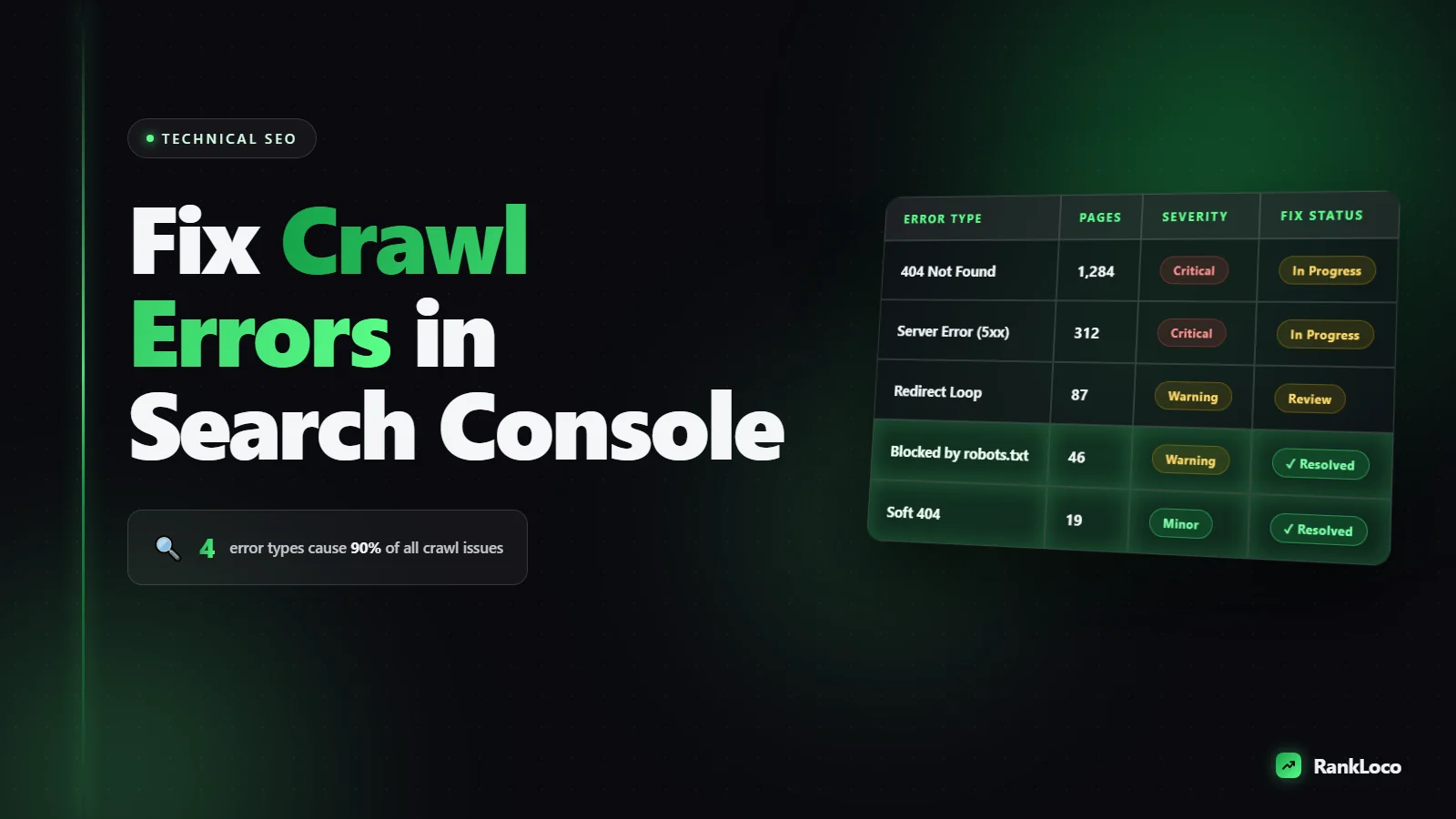
To fix crawl errors in Google Search Console, open the Pages report under Indexing, click into each error type (like "Not found (404)" or "Server error 5xx"), export the affected URLs, fix the root cause (repair broken links, redirect dead pages, unblock in robots.txt, or return the correct status code), then hit Validate Fix so Google recrawls. Most crawl errors come down to four things: pages that no longer exist, server problems, blocked resources, and bad redirects. Below is exactly how to diagnose and clear each one.
Where crawl errors actually live in Google Search Console
Google retired the old "Crawl Errors" report years ago. The data now sits in two places:
- Pages report (Indexing > Pages): This is your main dashboard. It splits URLs into "Indexed" and "Not indexed," and the "Not indexed" section lists every reason a page failed, including 404s, server errors, redirect issues, and robots.txt blocks.
- URL Inspection tool: Paste any single URL to see how Google last crawled it, what status code it returned, whether it is indexable, and the rendered HTML Googlebot saw.
Start with the Pages report to find the scale of the problem, then use URL Inspection to debug individual URLs. Do not panic at the raw numbers. A site with thousands of "Not indexed" URLs is often completely healthy because a lot of those are intentional (paginated pages, filtered URLs, redirects). Your job is to separate real errors from noise.
The crawl error types that matter and how to fix each one
Here is a quick reference for the errors you will actually see, what causes them, and the fix.
| Error in GSC | What it means | The fix |
|---|---|---|
| Not found (404) | Page no longer exists but is still linked or in the sitemap | 301 redirect to a relevant page, or leave it as a clean 404 if there is no equivalent |
| Server error (5xx) | Your server failed to respond when Googlebot visited | Check hosting resources, error logs, and timeouts; fix the app or upgrade the server |
| Redirect error | Redirect chain, loop, or a redirect to a broken URL | Point redirects directly to the final destination in one hop |
| Blocked by robots.txt | A rule in robots.txt stops Google from crawling the URL | Remove or edit the disallow rule if the page should be indexed |
| Blocked due to access forbidden (403) | Server is refusing Googlebot access | Check firewall, security plugins, and user-agent rules |
| Soft 404 | Page returns 200 but has no real content (or says "not found") | Add real content, or return a proper 404/410, or redirect |
| Crawled - currently not indexed | Google crawled it but chose not to index | Improve content quality, internal links, and search intent match |
| Discovered - currently not indexed | Google knows the URL but has not crawled it yet | Improve crawl budget, internal linking, and reduce low-value URLs |
How to fix 404 (Not found) errors
404s are the most common crawl error and the most misunderstood. A 404 is not automatically bad. If a page genuinely no longer exists and has no replacement, returning a 404 is correct and Google will drop it. You only need to act when the 404 has value or inbound links.
- Export the 404 URLs from the Pages report.
- Check where the links come from. Use URL Inspection or your own crawl to find internal links pointing at dead pages, then fix those links.
- Redirect the ones with value. If a deleted product page ranked or had backlinks, 301 redirect it to the closest relevant page (a similar product, the category page, not a blanket redirect to the homepage).
- Leave true dead ends as 404 or 410. Use a 410 (Gone) when you want Google to forget the URL faster.
- Remove them from your XML sitemap. Never list URLs that return anything other than 200 in your sitemap. That is a self-inflicted error.
Do not mass-redirect every 404 to your homepage. Google treats homepage redirects for irrelevant URLs as soft 404s, which just moves the problem instead of solving it.
How to fix server errors (5xx)
A 5xx error means Googlebot asked for a page and your server choked. This directly hurts crawling because Google will slow down its crawl rate when it hits repeated server errors.
- Check if the error is still happening. Use URL Inspection and click "Test live URL." If it returns 200 now, the error was temporary (a traffic spike or a brief outage) and you can validate the fix.
- Look at your server logs for the timestamps GSC reports. Recurring 500s often point to a database connection limit, a bad plugin, or PHP memory exhaustion.
- Watch for host resource limits. Cheap shared hosting throttles requests. If Googlebot crawls fast and you hit 503s, upgrade the plan or add caching.
- Fix 503s deliberately. A 503 during real maintenance is fine and tells Google to come back later. A permanent 503 will get pages deindexed.
How to fix redirect errors and chains
Redirect errors show up when Googlebot follows a chain that is too long, loops back on itself, or ends at a broken URL. Redirect chains also waste crawl budget and dilute link equity.
- Map every redirect with a crawler so you can see the full hop sequence.
- Rewrite chains so each old URL points directly to the final live URL in one 301.
- Kill any loops (URL A redirects to B, B redirects back to A).
- Make sure your HTTP to HTTPS and non-www to www rules are consistent so you are not stacking redirects on top of each other.
How to fix "Blocked by robots.txt" and 403 errors
If important pages are blocked by robots.txt, Google cannot crawl them at all. Open yourdomain.com/robots.txt and read every Disallow line. A common mistake is a rule like Disallow: / left over from a staging site, which blocks the entire domain.
Use the URL Inspection tool to confirm whether a specific URL is blocked, then edit or remove the offending rule. Remember: robots.txt controls crawling, not indexing. If you want a page kept out of the index, use a noindex meta tag and let Google crawl it, do not block it in robots.txt.
For 403 (forbidden) errors, the culprit is usually a security plugin, a firewall, or a CDN rule rejecting Googlebot. Whitelist verified Googlebot and test again with the live URL tool.
How to fix soft 404s
A soft 404 is when a page returns a 200 OK status but Google decides it is effectively empty or a "not found" page. Typical causes: thin pages, empty search results pages, out-of-stock product pages with no content, or custom error pages that return 200 instead of 404.
- If the page should exist, add substantial, useful content that matches what searchers want. This is where nailing search intent so your content matches what users want pays off.
- If the page is genuinely gone, return a real 404 or 410 status code.
- Fix your error template so it returns the correct HTTP status.
How to fix "Crawled" and "Discovered - currently not indexed"
These two are not technical errors, they are quality and crawl-budget signals, and they trip people up constantly.
Crawled - currently not indexed means Google saw the page and decided it was not worth indexing. Usually it is thin, duplicate, or too similar to a stronger page. Improve the content, add internal links from relevant pages, and consolidate near-duplicates. A strong internal linking strategy is one of the fastest ways to push these pages over the line because it signals importance.
Discovered - currently not indexed means Google found the URL but has not crawled it yet, often a crawl-budget or priority issue. Reduce low-value URLs (faceted navigation, endless parameters), tighten your sitemap to only include pages you want indexed, and build internal links to the pages you care about.
Your crawl error fix workflow (checklist)
- Open Indexing > Pages and sort by error type and number of affected URLs.
- Prioritize errors hitting your money pages and high-traffic content first.
- Export affected URLs for each error type.
- Diagnose the root cause with URL Inspection and "Test live URL."
- Apply the correct fix (redirect, status code, robots.txt edit, content improvement).
- Clean your XML sitemap so it only lists indexable 200 URLs.
- Click Validate Fix in GSC to trigger a recrawl.
- Recheck in 1 to 4 weeks. Validation is not instant.
Crawl errors are rarely a one-time cleanup. New ones appear every time you delete pages, restructure URLs, or change hosting. Running a recurring technical SEO checklist catches most of them before Google ever flags them. You can also monitor indexing and crawl health continuously with RankLoco, so you spot a spike in 404s or 5xx errors the week it happens instead of a month later. For more step-by-step guides, browse the rest of our SEO guides.
How long does it take Google to clear a crawl error?
After you click Validate Fix, Google queues your URLs for recrawling. It usually takes a few days for validation to start and 1 to 4 weeks to fully clear, depending on how many URLs are involved and your site's crawl rate. Do not click Validate Fix repeatedly. Fix the issue properly once, validate once, and give it time.
Frequently Asked Questions
Do 404 errors hurt my Google rankings?
A handful of natural 404s will not hurt rankings. Google expects pages to come and go. Problems arise when important pages 404 (losing their rankings and links) or when internal links point to dead pages, wasting crawl budget. Redirect valuable dead URLs and fix broken internal links.
Why does Google Search Console show pages I already deleted?
GSC data lags real time, sometimes by days or weeks. It also keeps reporting a URL until Google recrawls it and confirms the new status. If you deleted a page and it now returns a proper 404 or 410, the error will drop off on its own after the next crawl.
Should I fix "Crawled - currently not indexed" errors?
Only if the affected pages matter to you. This status means Google judged the content not worth indexing, usually because it is thin or duplicate. Improve the content, add internal links, and merge near-duplicate pages. If the pages are genuinely low value, it is fine to leave them unindexed.
What is the difference between robots.txt blocking and noindex?
Robots.txt stops Google from crawling a URL, so it cannot read the page at all. Noindex lets Google crawl the page but tells it not to index it. If you want a page kept out of search results, use noindex and allow crawling. Blocking with robots.txt can leave a URL indexed without a description.
How do I make Google recrawl a fixed page faster?
Use the URL Inspection tool, paste the URL, and click "Request Indexing" for individual pages. For bulk fixes, click "Validate Fix" in the Pages report. Keep your XML sitemap current and build internal links to the page, since well-linked pages get crawled more often.
Why did my crawl errors suddenly spike?
A sudden spike usually follows a site change: a migration, a URL restructure, a hosting move, a plugin update, or a broken deployment. Check what changed around the date the errors appeared. Server error spikes often mean your host is throttling Googlebot or your app is crashing under load.