How to Improve Core Web Vitals on a WordPress Site
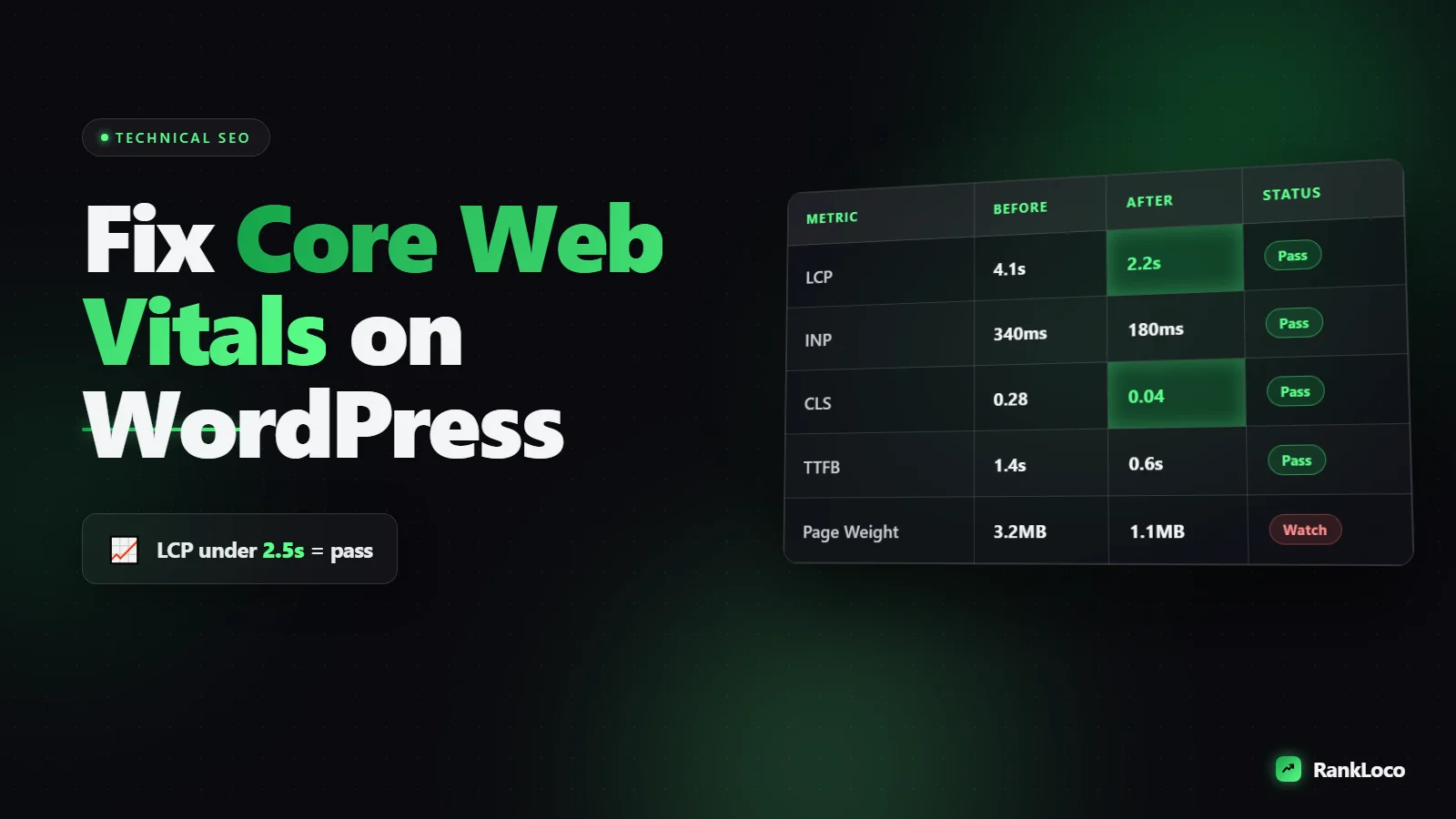
To improve Core Web Vitals on WordPress, focus on the three metrics Google actually measures: fix your Largest Contentful Paint (LCP) by serving compressed images and caching pages, cut Interaction to Next Paint (INP) by removing bloated JavaScript, and stop Cumulative Layout Shift (CLS) by setting explicit width and height on every image and reserving space for ads and fonts. A quality caching plugin, image optimization, and a fast host handle 80% of the work. The rest is trimming plugins and scripts you do not need.
Below is the exact order I work through when a WordPress site fails Core Web Vitals in Search Console, plus the plugins and settings that reliably move the numbers.
What Core Web Vitals actually measure (and the numbers to beat)
Google grades three real-world metrics from Chrome user data. You need to be in the "good" range on all three to pass. Here are the thresholds:
| Metric | What it measures | Good | Needs work |
|---|---|---|---|
| LCP (Largest Contentful Paint) | Time until the biggest element (usually a hero image or headline) loads | Under 2.5s | Over 4.0s |
| INP (Interaction to Next Paint) | How fast the page responds to clicks and taps | Under 200ms | Over 500ms |
| CLS (Cumulative Layout Shift) | How much the layout jumps around while loading | Under 0.1 | Over 0.25 |
Two things matter before you touch anything. First, Google uses field data (real visitors) for ranking, not the lab score you get in a one-off test. So fixes take up to 28 days to show up fully in Search Console. Second, mobile scores are what count most, because most sites are indexed mobile-first. Always test on mobile.
Step 1: Measure with the right tools before you change anything
Do not guess. Pull your current numbers so you can prove the fixes worked.
- Google Search Console: Open the Core Web Vitals report under Experience. This is field data grouped by URL type, so you can see which templates fail (often product pages or the homepage).
- PageSpeed Insights: Run your key URLs. Ignore the big lab number and read the "Discover what your real users are experiencing" section at the top. That is field data.
- Chrome DevTools Performance panel: For diagnosing exactly which script or image is the culprit.
Write down LCP, INP, and CLS for your homepage, a blog post, and (if you have one) a product page. These are your baselines. Core Web Vitals are one piece of a broader health check, so it helps to run a full technical SEO checklist at the same time to catch related issues.
Step 2: Fix LCP first (it fails on most WordPress sites)
LCP is usually the metric dragging your score down, and the LCP element is almost always a large hero image or a slow server response. Work through these in order.
Add page caching
Caching serves a pre-built HTML version of your page instead of rebuilding it from the database on every visit. This is the single biggest LCP win on WordPress. Use one of these:
- WP Rocket (paid, easiest, does caching plus a lot more)
- LiteSpeed Cache (free, excellent if your host runs LiteSpeed servers)
- W3 Total Cache or WP Super Cache (free)
Turn on page caching, then confirm it works by checking your page source for a cache comment or testing load speed before and after.
Compress and resize images
Uploading a 3000px, 2MB photo and letting CSS shrink it is the most common WordPress mistake. Fix it:
- Install an image optimizer like ShortPixel, Imagify, or Smush and bulk-compress your library.
- Serve WebP or AVIF formats. Most optimizers do this automatically.
- Resize source images to the actual display size before uploading. A blog body image rarely needs to be wider than 1200px.
Preload the LCP image and stop lazy-loading it
WordPress lazy-loads images by default, which is great for below-the-fold content but terrible for your hero image. Lazy-loading the LCP element delays it. Exclude your above-the-fold image from lazy loading (WP Rocket and LiteSpeed both have a setting) and preload it so the browser fetches it immediately.
Upgrade cheap hosting
If your Time to First Byte (server response) is over 600ms, no plugin will save you. Budget shared hosting is the silent LCP killer. Move to a host built for WordPress (Kinsta, Cloudways, SiteGround, or a good LiteSpeed host) and your server response often drops by half.
Use a CDN
A content delivery network serves your images and static files from servers near each visitor. Cloudflare has a solid free tier. This cuts load time for anyone outside your host's region.
Step 3: Cut INP by trimming JavaScript
INP replaced First Input Delay in 2024 and it is stricter. It measures how sluggish your page feels when someone clicks, taps, or types. On WordPress, heavy JavaScript from plugins and page builders is the usual cause.
- Defer and delay JavaScript. WP Rocket's "Delay JavaScript execution" and LiteSpeed's equivalent hold non-critical scripts until the user interacts. This is the biggest INP lever available in a plugin.
- Audit your plugins. Deactivate anything you do not use. Each active plugin can load its own CSS and JS on every page. Sliders, chat widgets, and social-share plugins are frequent offenders.
- Question your page builder. Elementor and Divi are convenient but heavy. If speed matters more than editing convenience, a lightweight theme like GeneratePress, Kadence, or Blocksy plus the native block editor is far leaner.
- Remove unused CSS. Most caching plugins can strip CSS that a given page does not use, shrinking render-blocking resources.
- Limit third-party scripts. Every tracking pixel, heatmap, live chat, and embedded widget runs code on the main thread. Keep only what earns its keep.
After delaying JavaScript, test that interactive elements (menus, forms, sliders) still work. Over-aggressive delay settings can break things, so test on mobile before you call it done.
Step 4: Kill layout shift (CLS)
CLS is the easiest metric to fix and the most annoying for users. It happens when content loads and pushes other content down while someone is reading or about to click. Common WordPress causes and fixes:
- Images without dimensions. Always set width and height attributes so the browser reserves space. Modern WordPress adds these automatically, but old content and some page builders do not.
- Web fonts flashing in. Use
font-display: swapand preload your main font. Better yet, host fonts locally instead of pulling from Google Fonts on every load. - Ads and embeds. Reserve a fixed container size for ad slots, video embeds, and iframes so they do not shove content when they load.
- Injected banners. Cookie notices and promo bars that push the page down are a classic CLS source. Overlay them or reserve their space.
Step 5: Re-test and monitor over time
After each round of changes, clear your cache and re-run PageSpeed Insights. But remember: the lab score updates instantly, while the field data that Google ranks on takes weeks to reflect real-visitor improvements. Check the Search Console Core Web Vitals report weekly and watch URLs move from "needs improvement" to "good."
Speed is one ranking factor among many, so track how these changes affect your actual positions. Watching your rankings in RankLoco alongside your Core Web Vitals tells you whether faster pages are earning the traffic you expected. If a page passes on speed but still slips, the issue is probably content or intent, not performance.
WordPress Core Web Vitals checklist
- Pull baseline LCP, INP, and CLS from Search Console and PageSpeed Insights (mobile).
- Install and configure a caching plugin (WP Rocket or LiteSpeed Cache).
- Bulk-compress images and serve WebP/AVIF.
- Exclude and preload the above-the-fold LCP image.
- Move off budget hosting if TTFB is over 600ms.
- Add a CDN (Cloudflare free tier works).
- Enable delay/defer JavaScript execution.
- Deactivate unused plugins and heavy third-party scripts.
- Set width and height on all images.
- Host fonts locally with
font-display: swap. - Reserve space for ads, embeds, and cookie banners.
- Re-test, then monitor field data in Search Console for 28 days.
Common mistakes that make WordPress speed worse
A few things I see people do that backfire:
- Stacking multiple optimization plugins. Two caching plugins fight each other. Pick one all-in-one tool.
- Chasing a 100 lab score. A perfect PageSpeed number means nothing if your field data is red. Optimize for real users, not the test.
- Optimizing only the homepage. Google groups CWV by page type. If your blog template fails, fix the template, not one URL.
- Ignoring server response. No plugin fixes a slow host. Sometimes the fastest win is a better server.
Once your pages load fast, make sure the rest of your on-page work is solid too. Pair these speed fixes with strong title tags and meta descriptions that earn clicks and a clean internal linking strategy so the traffic you speed up actually converts and spreads authority across your site. For more guides, browse the RankLoco blog.
Frequently Asked Questions
Does improving Core Web Vitals actually help WordPress rankings?
Yes, but modestly. Core Web Vitals are a confirmed ranking signal inside Google's page experience system, though they act as a tiebreaker rather than a primary factor. Content relevance and links matter more. Fast pages help most on mobile and can be the deciding edge between you and a similar competitor.
Which is the best plugin to improve Core Web Vitals on WordPress?
WP Rocket is the most reliable all-in-one option because it handles caching, JavaScript delay, and CSS optimization with sensible defaults. If your host runs LiteSpeed servers, LiteSpeed Cache is free and just as strong. Pair either with an image optimizer like ShortPixel and you cover most of the work.
How long does it take for Core Web Vitals to improve in Search Console?
Field data in Search Console is based on a rolling 28-day window of real Chrome users. So even after you fix everything, expect two to four weeks before the report fully reflects the improvement. The lab score in PageSpeed Insights updates instantly, but that is not what Google ranks on.
Why does my WordPress site fail INP even after caching?
INP measures interaction responsiveness, which caching does not fix. It is almost always heavy JavaScript from plugins, page builders, or third-party scripts blocking the main thread. Enable "delay JavaScript execution," remove unused plugins, and cut tracking scripts. If you use Elementor or Divi, their overhead is a common INP cause.
Do I need to remove my page builder to pass Core Web Vitals?
Not necessarily, but page builders add significant CSS and JavaScript weight. You can often pass by delaying JavaScript, removing unused CSS, and caching aggressively. If you still fail after that, switching to a lightweight theme with the native block editor is the most effective fix, though it means rebuilding your templates.
Should I use Cloudflare to speed up my WordPress site?
Yes, the free Cloudflare tier is worth adding for most sites. It caches static files on servers near your visitors, reducing load time and taking pressure off your origin server. Combine it with a WordPress caching plugin rather than relying on it alone, and enable its image and minification features where they do not break your layout.