How to Track Blog Post Conversions in GA4
To track blog post conversions in GA4, mark your key actions (form submits, signups, purchases) as key events, then use the Landing Page report filtered to Session source/medium = organic or your blog path and add your key event as a secondary metric. This shows you which individual blog URLs bring in visitors who actually convert, not just visitors who show up and leave. From there you can double down on winners and fix or kill the pages that only generate vanity traffic.
Most blogs measure the wrong thing. They celebrate pageviews and sessions while having no idea which posts put money in the bank. Below is the exact setup to connect each article to real business outcomes inside GA4.
Step 1: Define what a blog conversion actually is
Before you touch GA4, decide what counts as a conversion for your blog. Blog traffic rarely buys on the first visit, so you need both hard and soft conversions.
- Hard conversions: purchase, demo request, paid trial start, phone call, quote request.
- Soft conversions: newsletter signup, lead magnet download, free tool usage, add to cart, pricing page visit.
- Micro conversions: scrolling 90 percent of an article, clicking a product CTA, watching an embedded video.
For a content-heavy site, soft and micro conversions matter most. A blog post almost never closes a sale directly. It captures an email or warms up a reader who converts later. If you only track the final purchase, nearly every blog post will look useless.
Step 2: Set up key events in GA4
GA4 renamed "conversions" to "key events." To track blog post conversions, you first need to send the event, then mark it as a key event.
Create the event
You have three common ways to generate the event:
- Enhanced measurement: GA4 automatically tracks form_start, form_submit, scroll (90 percent), file_download, and outbound clicks if enhanced measurement is on. Check Admin > Data Streams > your stream > Enhanced measurement.
- Google Tag Manager: fire a custom event (for example newsletter_signup or lead_submit) when someone submits a specific form or clicks a specific button.
- Create event in GA4: build a new event from an existing one, like firing pricing_view when page_view happens on a URL containing /pricing.
Mark it as a key event
Go to Admin > Events, find your event, and toggle "Mark as key event." Once it collects data, it appears across reports as a conversion metric. Give it 24 to 48 hours to populate.
If you have not done the groundwork yet, start with our guide on how to set up Google Analytics 4 to track organic search traffic. You need clean traffic data before conversion data means anything.
Step 3: Attribute conversions to the right blog post
This is where most people get stuck. A reader lands on your blog post, bounces around, and converts three pages later. Which page gets credit? GA4 gives you a few lenses, and you want to use more than one.
Landing Page report (first touch)
Go to Reports > Engagement > Landing page. This shows the first page of each session. Add your key event as a column. This answers: which blog posts bring in people who eventually convert in that same session?
To isolate organic blog traffic, add a filter for Session default channel group = Organic Search, or filter the landing page to contain /blog/. Now you see entrance pages ranked by conversions.
Pages and screens report (assist view)
Reports > Engagement > Pages and screens shows every page viewed, not just entrances. It helps you see which posts people read on the way to converting, even if they entered somewhere else. Pair this with the landing page view to separate posts that open the relationship from posts that close it.
Path exploration (the real journey)
In Explore, build a Path exploration. Start from your key event as the endpoint and work backward to see which pages precede conversions. This reveals assist content that first-touch and last-touch reports both miss. If a buying-guide post constantly appears two steps before a conversion, it is pulling weight even if it rarely gets direct credit.
Step 4: Build a blog conversions exploration report
The default reports are fine for spot checks. For ongoing analysis, build a custom Exploration so you can see conversions by individual blog URL in one table.
- Open Explore > Free form.
- Dimensions: add Landing page + query string (or just Landing page) and Session source/medium.
- Metrics: add Sessions, Engaged sessions, your key event count, and Session key event rate.
- Rows: Landing page. Set to 50 or 100 rows.
- Filter: Landing page contains /blog/ AND Session source/medium contains organic.
- Sort by key event count or key event rate.
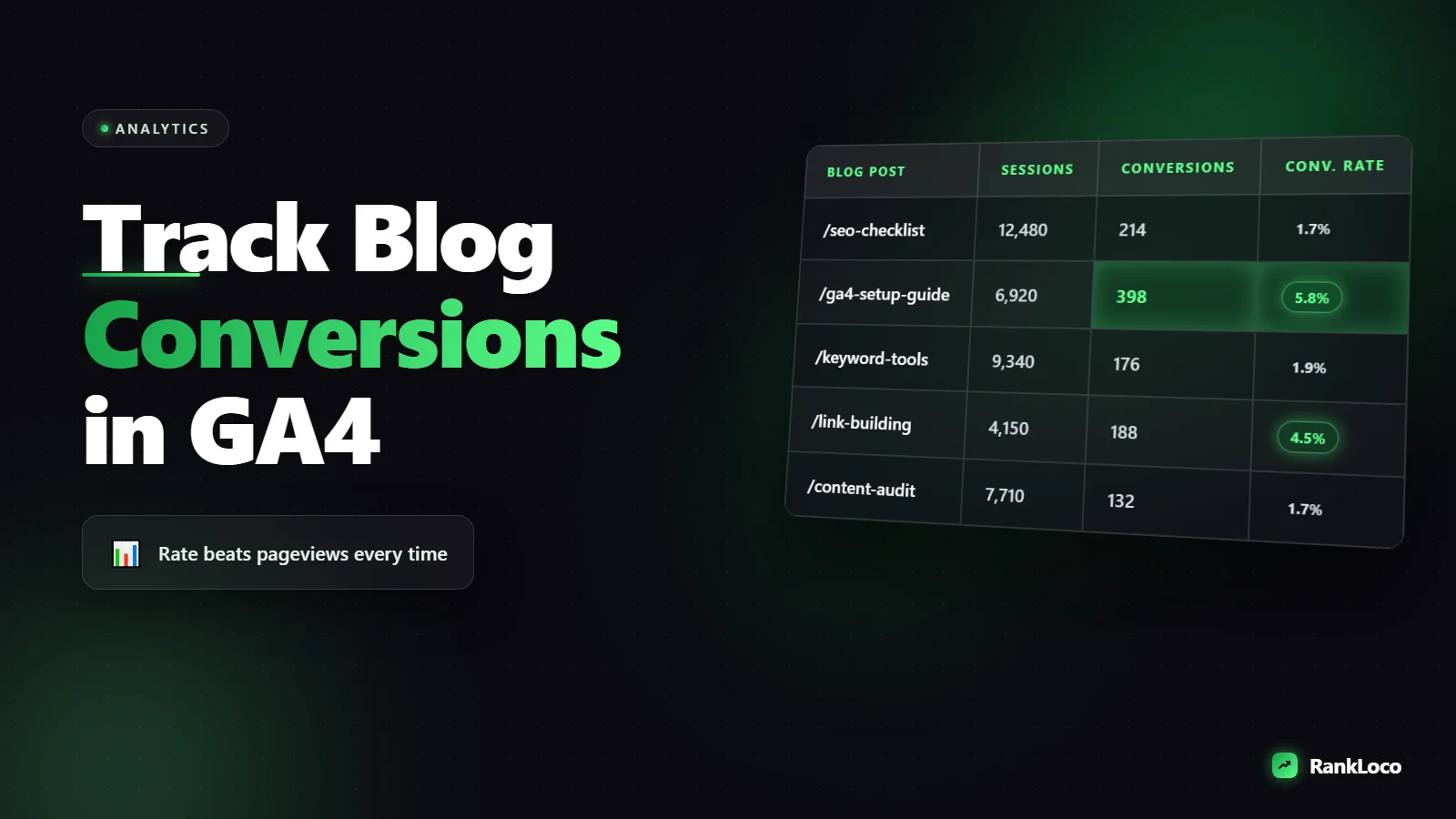
Now you have a single table that answers "how to track blog post conversions in GA4" at a glance. You can see traffic, engagement, and conversions side by side for every post.
Metrics to put in your blog conversion report
| Metric | What it tells you | Why it matters |
|---|---|---|
| Sessions | How much traffic the post gets | Context for conversion volume |
| Key events | Total conversions from that post | Raw business impact |
| Session key event rate | Percent of sessions that convert | Efficiency, best for comparing posts |
| Engaged sessions | Sessions over 10 sec or with 2+ pageviews | Quality of traffic |
| Average engagement time | How long readers stay | Content quality signal |
Watch both conversion volume and conversion rate. A post with 10,000 sessions and a 0.5 percent rate converts more people than a post with 200 sessions at 4 percent, but the second post is far more efficient per visitor. The high-rate, low-traffic post is your best candidate for an SEO push to grow its traffic.
Step 5: Connect conversions back to keywords and rankings
GA4 tells you which pages convert. It does not reliably tell you which keywords drove the session (Google hides most query data). To close that loop, link Google Search Console to GA4, then cross-reference your top converting pages with the queries ranking for them in Search Console.
Once you know which converting post ranks for which terms, track those terms deliberately. A tool like RankLoco lets you monitor rankings for the exact keywords feeding your money pages, so you can see when a position drop threatens conversions before traffic even dips. Our guide on how to track keyword rankings over time to measure progress walks through setting that up.
Step 6: Act on what the data tells you
Measurement is pointless without action. Here is the playbook for each type of post you find.
- High traffic, high conversions: protect it. Refresh content, keep it ranking, add more internal links pointing to it.
- High traffic, low conversions: the offer or CTA is weak, or the intent is wrong. Add a relevant lead magnet, tighten the CTA placement, or match the content closer to buyer intent.
- Low traffic, high conversion rate: your biggest opportunity. Improve rankings with better on-page SEO, internal links, and backlinks to pour more traffic into a page that already converts.
- Low traffic, low conversions: candidate for consolidation, redirect, or deletion.
For the high-traffic, low-conversion group, check whether readers are even sticking around. If they bounce fast, fix the content experience first. Our guide on how to reduce bounce rate on blog pages covers the engagement fixes that make conversions possible.
Common GA4 blog conversion tracking mistakes
- Tracking only the final purchase. You will miss 90 percent of blog value. Track soft conversions too.
- Ignoring attribution windows. GA4 defaults to a data-driven model. Blog conversions often happen days later, so check your conversion window settings and compare last-click vs data-driven in the Advertising section.
- Not filtering internal traffic. Your own visits inflate engagement and skew conversion rates. Set up an internal traffic filter.
- Comparing raw conversion counts only. Always look at conversion rate alongside volume so small-but-mighty posts get noticed.
- Forgetting UTM hygiene. If newsletters or social links point to blog posts without consistent tagging, your source/medium data gets messy and attribution breaks.
Want more guides like this? Browse the full library of SEO and analytics tutorials for the rest of your measurement stack.
Frequently Asked Questions
How do I see which blog post led to a sale in GA4?
Build a Path exploration in the Explore section with your purchase key event as the ending point, then step backward through the page path. You can also use the Landing page report with your conversion as a secondary metric to see which entry pages drive same-session sales.
What is the difference between a conversion and a key event in GA4?
They are the same thing. GA4 renamed "conversions" to "key events" in 2024. Any event you mark as a key event in Admin > Events is counted as a conversion across your reports. The word "conversions" still appears in some Advertising reports.
Can GA4 track newsletter signups from a specific blog post?
Yes. Fire a custom event like newsletter_signup when the form submits, mark it as a key event, then view it in the Landing page report filtered to that blog URL. Enhanced measurement can also capture form_submit automatically if the form is standard HTML.
Why do my blog posts show traffic but zero conversions in GA4?
Either you have not marked any key events, the conversion happens on a later visit outside the attribution window, or your CTAs do not match the reader's intent. Confirm key events are set up first, then review whether the post targets informational searchers who are not ready to buy.
How long should I wait before judging a blog post's conversion performance?
Give a post at least 30 to 90 days of data, and more if it gets low traffic. Conversion rate needs enough sessions to be reliable. A post with only 40 sessions does not have a trustworthy conversion rate yet, so weight your decisions toward pages with meaningful sample sizes.
Does GA4 track phone calls as blog conversions?
Not on its own. You need to track clicks on tel: links (enhanced measurement captures some as outbound or link clicks) or integrate a call tracking tool that sends an event into GA4. Mark that event as a key event, then attribute it to the landing page like any other conversion.