How to Fix Index Coverage Issues When Pages Are Not Getting Indexed
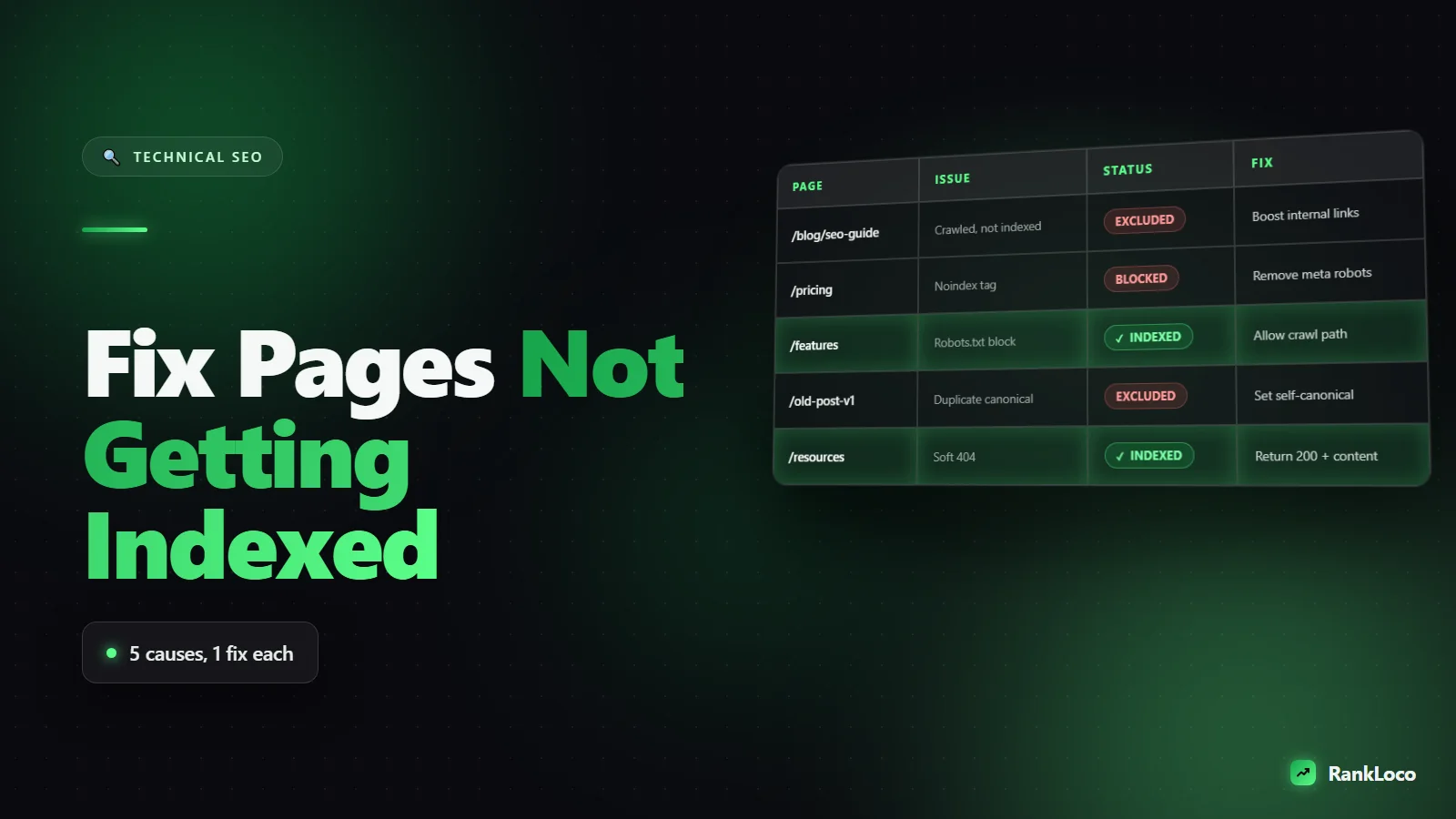
If your pages are not getting indexed by Google, the cause is almost always one of five things: Google has not crawled the URL yet, the page is blocked by robots.txt or a noindex tag, it is judged low quality or duplicate, it has no internal links pointing to it, or your server returned an error when Googlebot visited. Open Google Search Console, use the URL Inspection tool on the specific page, and read the exact status message. That message tells you which of these problems you have, and this guide tells you how to fix each one.
Start with the URL Inspection tool, not guesswork
Before you change anything, get the facts. Paste the exact URL into the search bar at the top of Search Console and hit enter. You will get one of three verdicts:
- URL is on Google: it is indexed. If it still gets no traffic, your problem is rankings or targeting, not indexing.
- URL is not on Google: it is known but not indexed. The reason appears under "Page indexing."
- URL is not on Google and could not be retrieved: Google could not crawl it at all. Check for server errors or blocks.
Click "Test live URL" to see how Googlebot renders the page right now versus the last crawled version. Differences here expose JavaScript rendering problems, accidental noindex tags, and redirects you did not know about.
What each index coverage status actually means
The Pages report under Indexing in Search Console groups your non-indexed URLs by reason. Each label points to a different fix. Here is the plain-English translation.
| Search Console status | What it means | First action |
|---|---|---|
| Crawled - currently not indexed | Google crawled it but chose not to index it, usually a quality or thin-content call | Improve depth, add internal links, differentiate from similar pages |
| Discovered - currently not indexed | Google knows the URL but has not crawled it yet, often a crawl budget or priority issue | Add internal links, request indexing, check server speed |
| Excluded by noindex tag | A meta robots or X-Robots-Tag noindex is telling Google to stay out | Remove the tag if the page should rank |
| Blocked by robots.txt | Your robots.txt disallows the path | Allow the path or remove the disallow rule |
| Duplicate without user-selected canonical | Google sees near-identical pages and picked a different one | Consolidate with canonicals or make the page unique |
| Alternate page with proper canonical | The page points to another URL as canonical, working as intended | Usually no action needed |
| Soft 404 | Page returns 200 but looks empty or error-like to Google | Add real content or return a proper 404/410 |
| Not found (404) / Server error (5xx) | The URL is broken or your server failed during crawl | Fix the error or redirect the URL |
Fix "Discovered - currently not indexed": crawl priority
This is the most common complaint on new and mid-size sites. Google found the URL (usually through your sitemap) but has not spent crawl resources on it. It is not a penalty, it is a priority problem. Google decides which URLs are worth crawling based on signals, and a page with zero internal links and no authority sits at the bottom of the queue.
Do this in order:
- Add internal links from pages that already get crawled. Link to the new page from your homepage, a relevant hub page, or a popular post. One link from a frequently crawled page does more than ten from dead corners of your site.
- Make sure the page is in your sitemap and that the sitemap is submitted. If you have not done this, follow our guide on how to create an XML sitemap and submit it to Google Search Console.
- Speed up your server. Slow response times make Google crawl fewer URLs per visit. Aim for server response under 600ms.
- Request indexing through the URL Inspection tool. This nudges a single URL, not a whole site, so use it on your priority pages.
Pages with no inbound links are called orphans, and they are a frequent reason URLs sit in "Discovered" forever. Learn to hunt them down with our walkthrough on how to find and fix orphan pages on your website.
Fix "Crawled - currently not indexed": the quality signal
When Google crawls a page and still declines to index it, it is telling you the content does not clear the bar. This is the hardest status to fix because there is no single toggle. Google judged the page not worth storing.
Common culprits and what to do:
- Thin or templated content. Category pages, tag archives, and auto-generated pages with a sentence of text get skipped. Add unique, substantial content or noindex the ones that have no search value.
- Near-duplicate pages. If five pages say almost the same thing, Google indexes one. Consolidate them or make each genuinely distinct.
- Weak topical authority. New sites publishing isolated posts get this a lot. Build out related content so the page sits inside a cluster, not alone. Our guide on building topic clusters and pillar pages shows how to structure this.
- No demand. If nobody searches the topic, Google has little reason to index it. Validate that real queries exist before you publish.
After you improve the page, add internal links to it and request indexing again. Reindexing a page that was already crawled can take days to weeks, so do not panic after 48 hours.
Fix noindex and robots.txt blocks
These are the easiest wins because the block is explicit and you control it. Check two places.
Meta robots and X-Robots-Tag
View the page source and search for noindex. If you find <meta name="robots" content="noindex">, remove it. Also check your HTTP response headers for an X-Robots-Tag noindex, which many people miss because it is not in the HTML. In WordPress, confirm Settings > Reading does not have "Discourage search engines" checked, and check your SEO plugin's per-page visibility settings.
robots.txt
Visit yourdomain.com/robots.txt and read it. A line like Disallow: /blog/ will block your entire blog. Remember that robots.txt blocks crawling, not indexing, so a blocked URL can still appear in results without a description. If you want a page truly out of the index, allow crawling and use a noindex tag instead. Never block a page you want indexed.
Fix duplicate and canonical problems
"Duplicate without user-selected canonical" and "Google chose different canonical than user" mean Google is consolidating signals onto a URL that is not the one you want to rank. This happens with URL parameters, www versus non-www, HTTP versus HTTPS, trailing slashes, and printer-friendly versions.
Set a self-referencing canonical on the version you want indexed, make sure internal links point to that same version consistently, and 301 redirect the junk variants. The full process is in our guide on how to fix duplicate content issues with canonical tags. Ecommerce sites hit this constantly with faceted navigation, so product and category setup matters here too.
Fix soft 404s and server errors
A soft 404 is a page that returns a 200 OK status but has no real content, or displays an error message in the body. Google treats it as if it is missing. Fix it by adding genuine content to the page or, if the page is genuinely gone, returning a proper 404 or 410 status code.
For 5xx server errors, your host or application failed when Googlebot visited. Check server logs around the crawl time, look for timeouts under load, and confirm your firewall or bot protection is not blocking Googlebot. If you recently migrated domains and see a wave of 404s, your redirects are incomplete. Our guide to setting up 301 redirects for a domain migration covers mapping old URLs to new ones cleanly.
A practical indexing checklist
Run through this list for any page that will not index:
- URL Inspection shows the exact status and reason
- No noindex meta tag in the HTML or X-Robots-Tag header
- Not disallowed in robots.txt
- Returns a 200 status code (not 404, 301 chain, or 5xx)
- Has a self-referencing canonical pointing to itself
- Included in your submitted XML sitemap
- Has at least one internal link from a crawled page
- Content is unique, substantial, and answers a real query
- Page renders fully for Googlebot (test live URL)
- Loads fast on mobile and desktop
If every box is checked and the page still is not indexed after two to four weeks, it is almost always a quality or demand problem, not a technical one. Go back and strengthen the content and its internal links.
Track indexing at scale instead of one URL at a time
URL Inspection is great for a single page, but it does not scale when you have hundreds of URLs. Use the Pages report to spot trends: a sudden spike in "Crawled - currently not indexed" after a template change means the template is the problem, not individual posts. Export the affected URLs, look for the common pattern (same subfolder, same template, same thin content), and fix the pattern once.
Pair that with ongoing monitoring. Running a technical crawl with RankLoco surfaces noindex tags, broken canonicals, redirect chains, and orphan pages across your whole site in one pass, so you catch indexing killers before they bury traffic. For more technical and on-page playbooks, browse our library of SEO guides.
Frequently Asked Questions
How long does it take Google to index a new page?
Anywhere from a few hours to a few weeks. Established sites with strong internal linking and fast servers often get new pages indexed within a day or two. New or low-authority sites can wait weeks. Requesting indexing in Search Console and adding internal links speeds it up.
Does requesting indexing in Search Console guarantee my page gets indexed?
No. Requesting indexing moves the URL up the crawl queue, but Google still decides whether the page is worth indexing. If the content is thin, duplicate, or has no internal links, it can be crawled and then skipped. Fix the underlying quality or linking issue first.
Why is Google indexing fewer pages than my sitemap lists?
Your sitemap is a suggestion, not a command. Google indexes the URLs it judges valuable and ignores thin, duplicate, or low-demand pages. Compare your sitemap count to the indexed count in the Pages report, then investigate the excluded URLs by status to find the pattern.
Can too many low-quality pages stop my good pages from getting indexed?
Yes. Large numbers of thin or near-duplicate pages waste crawl budget and can lower a site's overall quality signals, making Google slower to index everything. Noindex or remove pages that have no search value, such as empty tag archives and auto-generated filters.
Will a noindex tag remove a page already in Google's index?
Yes, but Google must recrawl the page to see the tag first. Keep the URL crawlable (do not also block it in robots.txt), and it will drop from the index on the next crawl. For faster removal, use the Removals tool in Search Console for a temporary hide while the noindex takes effect.
Does page speed affect whether pages get indexed?
Indirectly, yes. Slow server response times reduce how many URLs Googlebot crawls per visit, which leaves pages stuck in "Discovered - currently not indexed." Fast, reliable hosting lets Google crawl more of your site more often, so improving response time helps indexing even if it is not a direct ranking of that page.