How to Find and Fix Orphan Pages on Your Website
To find orphan pages on a website, crawl your site with a tool like Screaming Frog, export the full list of URLs from your XML sitemap and Google Analytics, then compare those lists against the crawl. Any URL that exists and gets traffic or sits in your sitemap but has zero internal links pointing to it is an orphan page. Fix each one by adding at least two or three relevant internal links from pages that already have authority, or remove and redirect it if it serves no purpose.
Orphan pages are quiet traffic killers. Google can struggle to discover them, they rarely accumulate link equity, and they split your topical authority across pages nobody can navigate to. This guide walks through exactly how to find every orphan page, decide which ones to keep, and reconnect them so they actually rank.
What Is an Orphan Page and Why It Hurts SEO
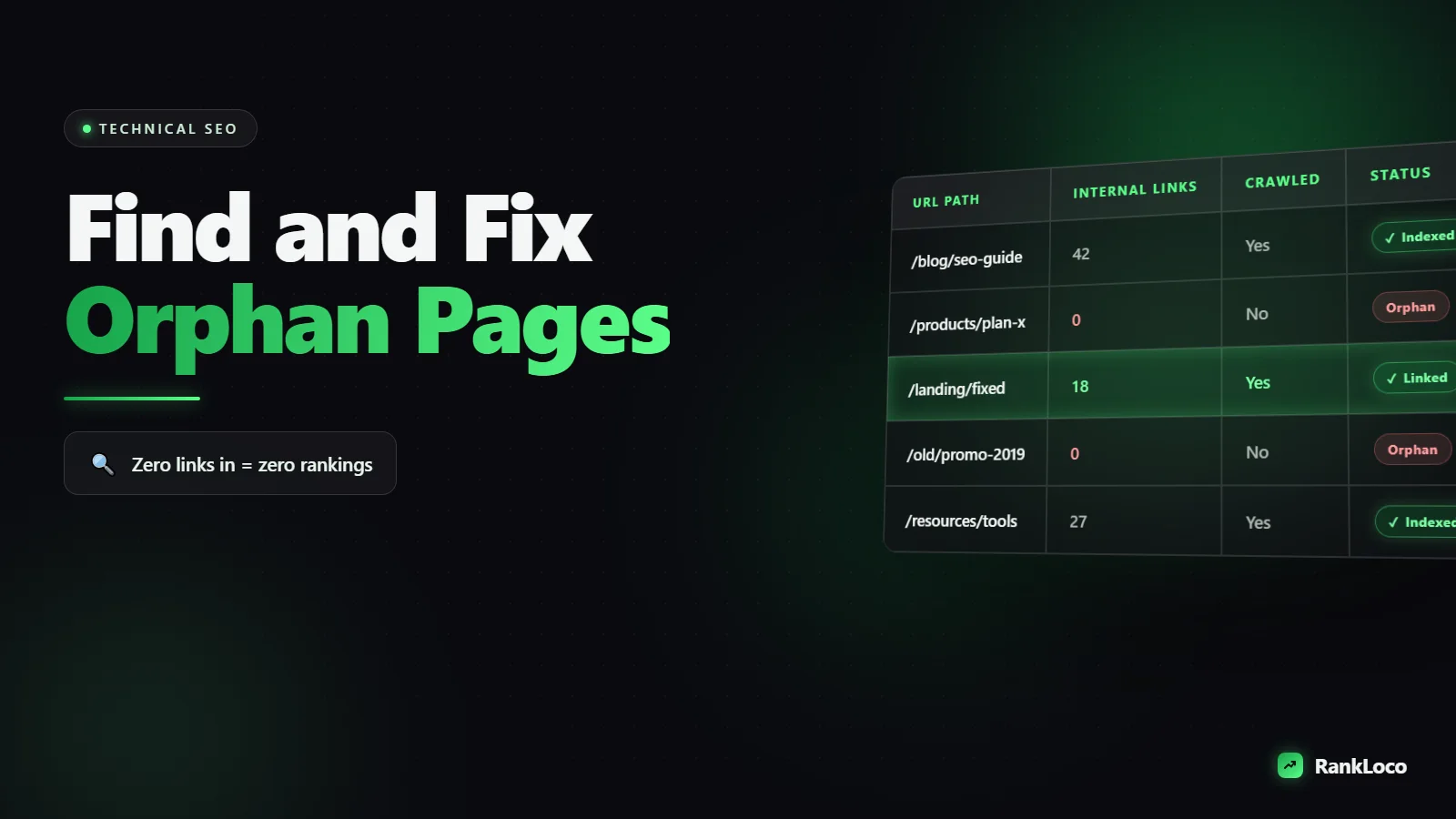
An orphan page is any live URL on your site that has no internal links pointing to it from other pages. You can only reach it by typing the direct URL, clicking an external link, or finding it in a sitemap. Crawlers that follow links from your homepage will never arrive there naturally.
Here is why that matters:
- Discovery problems: Googlebot primarily finds pages by following internal links. A page with no inbound links may get crawled late, infrequently, or not at all.
- No link equity: Internal links pass PageRank. An orphan page receives none from the rest of your site, so it starts every ranking battle with a handicap.
- Weak topical signals: Internal links tell Google how pages relate. Orphans sit outside your topic clusters, so they fail to reinforce (or borrow) authority from related content.
- Poor user flow: If users cannot navigate to a page, it contributes nothing to engagement, conversions, or your site's crawl structure.
Not every orphan is a mistake. Landing pages for paid campaigns, thank-you pages, and transactional confirmations are often orphaned on purpose. The problem is the content pages, product pages, and blog posts that should rank but got cut off from your link graph.
How to Find Orphan Pages on a Website: 4 Methods
No single tool catches every orphan. The reliable approach is to pull URLs from several sources and cross-reference them against a crawl. Here are the four methods that matter.
1. Crawl Your Site and Compare Against the Sitemap
Start with a crawler such as Screaming Frog, Sitebulp, or the crawl feature inside RankLoco. Run a standard crawl that starts from your homepage and follows internal links. This gives you every page the crawler can reach through your link structure.
Next, point the same tool at your XML sitemap or use its list mode to import sitemap URLs. In Screaming Frog, enable "Crawl Linked XML Sitemaps" under configuration. After the crawl completes, use the "Orphan URLs" report (found under Reports, Crawl Overview, or the Sitemaps tab). It flags URLs present in the sitemap but never discovered through internal links. Those are your prime suspects.
If you do not have a clean sitemap yet, fix that first. Our guide on how to create an XML sitemap and submit it to Google Search Console walks through it. A complete sitemap is the single best source for this comparison.
2. Pull URLs from Google Analytics and Search Console
Some orphan pages get traffic despite having no internal links (from old backlinks, email, or social). A crawler starting from your homepage will miss them entirely. To catch these, export landing-page data:
- GA4: Go to Reports, Engagement, Landing page. Export every URL that received sessions in the last 12 months. If you need a refresher on configuring this, see how to set up GA4 to track organic search traffic.
- Google Search Console: Open Performance, switch to the Pages tab, and export all URLs that earned impressions or clicks. Also check the Pages (Indexing) report for "Indexed, not submitted in sitemap" URLs, which often surfaces orphans.
Feed these URL lists into your crawler's list mode. Any URL that gets traffic or impressions but does not appear in your internal-link crawl is an orphan worth reconnecting.
3. Check Server Log Files
Log files show every URL Googlebot actually requested. If a page appears in your logs being crawled by Google but has no internal links in your crawl data, it is orphaned. This is the most accurate method for large sites, because it reflects real crawler behavior rather than assumptions. Export your access logs, filter for Googlebot, and compare the requested URLs against your internal-link crawl.
4. Cross-Reference Your CMS Page List
Your CMS knows every page that exists, published or not. Export the full list of published URLs from WordPress, Shopify, or whatever platform you run. Compare that master list against your crawl. Pages that exist in the CMS but never got linked are orphans, including old posts you forgot about and auto-generated tag or category archives.
Build Your Master Orphan List
Combine all four sources into one spreadsheet. Dedupe the URLs, then flag which ones the internal-link crawl failed to reach. Here is a simple way to structure it:
| Column | What it tells you |
|---|---|
| URL | The page in question |
| In sitemap? | Should it be indexed |
| Internal links in | 0 = orphan |
| Sessions (12 mo) | Does it still get traffic |
| Impressions (GSC) | Does Google already rank it |
| Backlinks | Is external equity being wasted |
| Decision | Link, merge, redirect, or delete |
With this table, the fix is obvious at a glance. A page with impressions, backlinks, and zero internal links is your highest priority. A thin page with no traffic and no links is a deletion candidate.
How to Fix Orphan Pages: Decide, Then Act
Every orphan gets one of four decisions. Work top to bottom.
Keep and Link (the default for good content)
If the page has value (it ranks, converts, or covers a real topic), reconnect it. Add internal links from relevant, authoritative pages:
- Link from closely related blog posts or product pages in the same topic cluster.
- Add it to a relevant category or hub page.
- Include it in your main navigation or footer if it deserves that prominence.
- Aim for at least two or three contextual links from different pages, not one.
Use descriptive, keyword-relevant anchor text, but do not stuff. Our guide on how to optimize anchor text for internal links without over-optimizing covers the balance. If the orphan belongs to a larger topic, the cleanest fix is to work it into a cluster. Learn how to build topic clusters and pillar pages so no future page ends up isolated.
Merge (for thin or overlapping content)
If the orphan covers a topic you already handle better elsewhere, merge its useful content into the stronger page and 301 redirect the orphan to it. This consolidates link equity and kills the duplicate-content risk. For overlapping URLs where you want to keep both live, a canonical tag may be the right call. See how to fix duplicate content issues with canonical tags.
Redirect (for dead pages with backlinks)
If the orphan is outdated but has backlinks or still gets some traffic, 301 redirect it to the most relevant live page so you keep the equity. If you are doing this at scale during a site move, the process in how to set up 301 redirects when migrating to a new domain applies to orphan cleanup too.
Delete and Return 410 (for junk)
Thin, duplicate, or irrelevant orphans with no traffic, no backlinks, and no reason to exist should be removed. Return a 410 (Gone) or 404 and let Google drop them. Do not keep dead weight in your index just because it exists.
Orphan Page Audit Checklist
- Run a full internal-link crawl starting from your homepage.
- Export all URLs from your XML sitemap and import them into list mode.
- Export landing pages from GA4 (12 months) and pages from Search Console.
- Export the full published URL list from your CMS.
- Pull Googlebot requests from server log files if available.
- Combine every source, dedupe, and flag URLs with zero internal links.
- For each orphan, record traffic, impressions, and backlinks.
- Assign a decision: link, merge, redirect, or delete.
- Add two or three contextual internal links to every page worth keeping.
- Update your sitemap, resubmit it, and request indexing on reconnected pages.
- Re-crawl in 2 to 4 weeks to confirm no page is orphaned again.
Stop Orphan Pages Before They Happen
Finding orphans is reactive. The better long-term play is preventing them. A few habits keep your link graph tight:
- Link on publish: Every new page should get at least two internal links from existing content before it goes live. Make it part of your publishing checklist.
- Plan in clusters: When content maps to a pillar-and-cluster structure, new pages always have an obvious parent to link from and to.
- Audit on a schedule: Run an orphan check quarterly. A recurring site audit in RankLoco can crawl your structure and flag pages that lost their internal links as you edit and prune content.
- Watch your CMS defaults: Tag archives, author pages, and paginated URLs often spawn orphans. Noindex the ones you do not want, and link the ones you do.
- Refresh old content with links: When you update posts, add fresh internal links to newer pages. Our guide on how to update old blog posts to improve rankings pairs well with orphan prevention.
Fixing orphan pages is one of the highest-ROI technical tasks you can do, because the content already exists. You are just reconnecting it to the rest of your site so Google can crawl it, pass it equity, and rank it. For more structural fixes like this, browse our other SEO guides.
Frequently Asked Questions
Does Google index orphan pages?
Google can index orphan pages if it discovers them through your XML sitemap, external backlinks, or past crawls. But discovery is slower and crawling is less frequent because there are no internal links to follow. Indexing is also less reliable, since pages with no internal support send weak relevance and authority signals.
How many internal links should an orphan page get?
Add at least two or three contextual internal links from different, relevant pages. One link technically removes the orphan status, but a single link passes minimal equity. Links from pages within the same topic cluster, plus a spot in a category or hub page, give the page enough signal to be crawled and ranked properly.
Are orphan pages always bad for SEO?
No. Some pages are orphaned intentionally, like PPC landing pages, checkout confirmation pages, and thank-you pages you do not want in organic search. These should usually be noindexed. The problem is content and product pages meant to rank that accidentally lost their internal links and became invisible to crawlers and users.
Can Screaming Frog find orphan pages for free?
Screaming Frog's free version crawls up to 500 URLs but needs a connection to Google Analytics, Search Console, or a sitemap to properly identify orphans, and some of those integrations require the paid license. For small sites you can approximate it by crawling, then manually comparing against your sitemap and analytics exports in a spreadsheet.
How often should I check for orphan pages?
Run a full orphan audit quarterly, and do a quick check anytime you delete pages, restructure navigation, or migrate platforms. Those actions break internal links and create orphans fast. Automated site audits that re-crawl your structure on a schedule catch new orphans before they cost you rankings.
What is the difference between an orphan page and a dead-end page?
An orphan page has no internal links pointing to it, so it cannot be discovered through your link structure. A dead-end page has no internal links pointing out from it, so crawlers and users hit it and have nowhere to go. Both hurt crawlability, and ideally every page has inbound and outbound internal links.