How to Measure SEO Results in Google Analytics 4
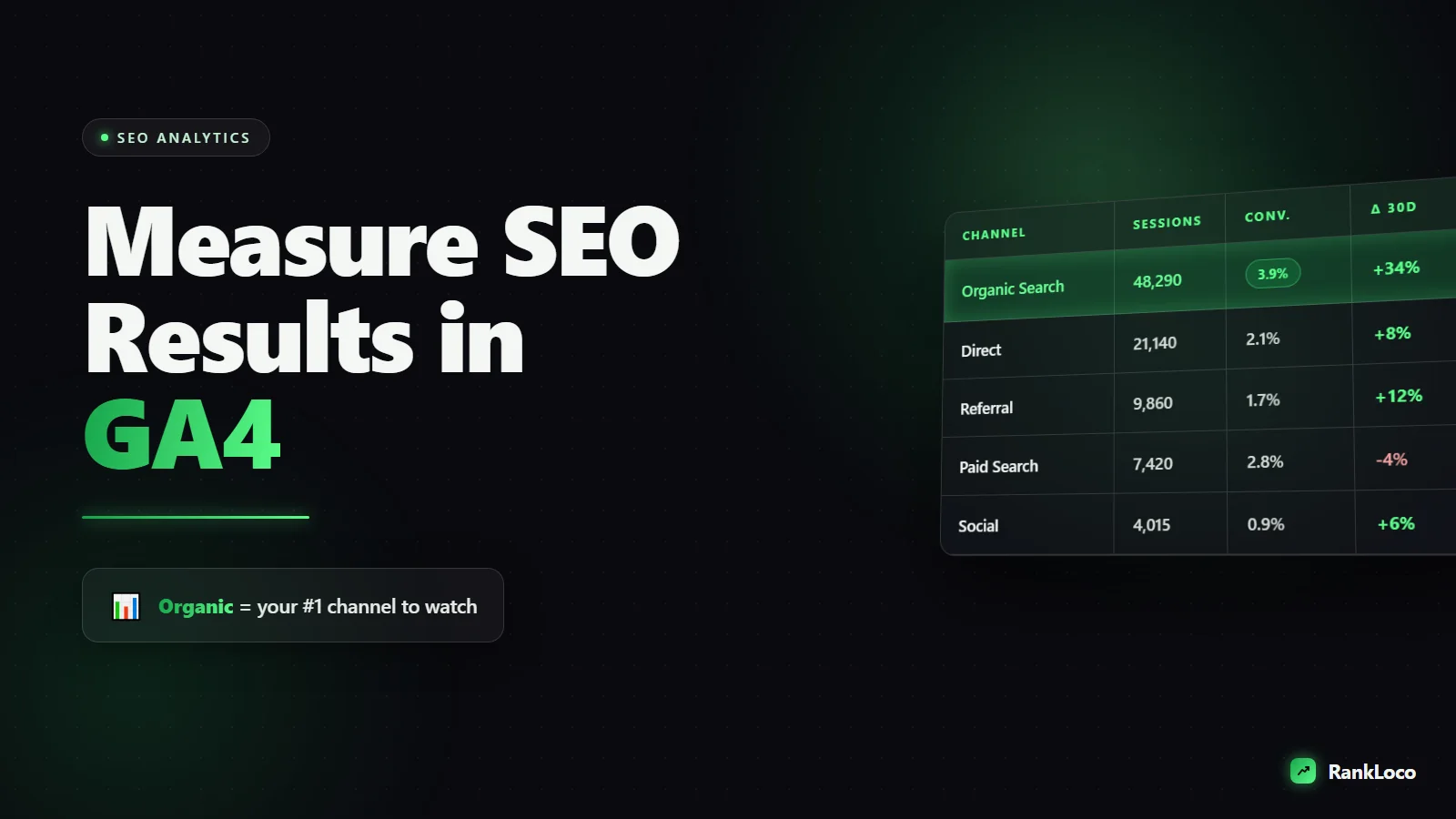
To measure SEO results in Google Analytics 4, filter your traffic to the Organic Search channel, then track sessions, engaged sessions, key events (conversions), and revenue over time in the Traffic Acquisition report. Connect GA4 to Google Search Console for query and landing-page data, and set up key events so you can prove organic traffic drives real business outcomes, not just clicks.
GA4 confused a lot of people when it replaced Universal Analytics. The event-based model is different, the menus moved, and half the reports you relied on vanished. But once you know where to look, GA4 is actually a solid way to see whether your SEO work is paying off. Here is exactly how to set it up and read it.
Set Up GA4 to Isolate Organic Search Traffic
Before you measure anything, you need to separate SEO traffic from everything else (paid ads, email, social, direct). GA4 does this automatically with its default channel grouping, but you have to know how to view it.
- Open GA4 and go to Reports > Acquisition > Traffic acquisition.
- In the table, the primary dimension is Session default channel group. Look for the row labeled Organic Search. That is your SEO traffic.
- Set the date range in the top right. Compare it to the previous period or the same period last year to see the trend, not just a snapshot.
If you only ever look at total traffic, you will never know if SEO is working. A spike could be a paid campaign or a viral social post. Always drill into the Organic Search channel specifically.
Filter to Organic Search Everywhere
You can add a filter to almost any GA4 report to show only organic visitors. In most exploration or report views, click Add filter, choose the dimension Session default channel group, set it to exactly matches Organic Search, and apply. Now every metric on screen reflects SEO only.
The Core GA4 Metrics That Actually Measure SEO Success
Ignore vanity numbers. These are the metrics that tell you whether your SEO is producing results worth caring about.
| Metric | What it tells you | Where to find it |
|---|---|---|
| Organic sessions | Volume of visits from search. The top-line growth number. | Traffic acquisition report |
| Engaged sessions | Visits lasting 10+ seconds, with a conversion, or 2+ page views. Quality signal. | Traffic acquisition report |
| Engagement rate | Percentage of sessions that were engaged. Are the right people landing? | Traffic acquisition report |
| Key events (conversions) | Form fills, calls, purchases from organic. The real ROI. | Traffic acquisition or Conversions report |
| Average engagement time | How long organic users actually stay engaged. | Engagement reports |
| Total revenue | Money attributed to organic (ecommerce or assigned values). | Monetization report |
Growth in organic sessions is nice, but engaged sessions and key events are what prove your traffic has intent. If sessions climb while engagement rate falls, you are attracting the wrong searchers. That usually means a mismatch between your content and what people are actually looking for. Fix it by revisiting search intent and matching your content to what users want.
Connect GA4 to Google Search Console
GA4 does not show you keyword data on its own. Google Search Console does, and you can pull that data into GA4. This is the single most useful integration for SEO measurement.
- In GA4, go to Admin > Product links > Search Console links.
- Click Link and choose the Search Console property that matches your site.
- Select a web data stream and confirm.
- Once linked, publish the Search Console reports so they appear under Reports > Search Console (you may need to enable them in the report library via the Library section).
After linking, you get two reports: Queries (which searches brought clicks and impressions) and Google organic search traffic (which landing pages earned those clicks and how they behaved afterward). This bridges the gap between what people searched and what they did on your site.
What to Watch in the Search Console Reports
- Queries with rising impressions but low clicks: your title tag or meta description is not compelling. Rewrite them using our guide to title tags and meta descriptions that get clicks.
- Landing pages with high clicks but low engagement: the page is not delivering on the promise of the search.
- Average position trends: track whether pages are climbing or slipping. For deeper, keyword-level tracking, pair this with a proper keyword rank tracker since GA4 only gives you averaged position data.
Set Up Key Events So SEO Ties to Revenue
Traffic that does not convert is a hobby, not a strategy. GA4 calls conversions key events. You need to define what a valuable action looks like on your site and mark it as a key event.
Common key events by business type:
- Lead gen / service business: contact form submission, phone click, quote request, booking.
- Ecommerce: purchase, add to cart, begin checkout.
- Content / media: newsletter signup, PDF download, video play.
To mark an event as a key event: go to Admin > Events, find the event (for example form_submit or generate_lead), and toggle Mark as key event. If the event does not exist yet, create it with Google Tag Manager or the built-in enhanced measurement settings.
Once key events fire, return to the Traffic acquisition report and add a comparison for Organic Search. You will now see key events attributed directly to SEO traffic. That number, tracked month over month, is the clearest proof your SEO investment is working.
Assign Values to Non-Purchase Conversions
If you run a lead-gen site, assign a monetary value to key events so GA4 can show revenue-equivalent numbers. If one in five contact form fills becomes a $500 client, each form fill is worth roughly $100. Enter that value in the event settings. Now you can report a dollar figure for organic search, which makes SEO far easier to justify to a boss or client.
Build a Simple SEO Reporting Dashboard in GA4
Instead of clicking through five reports every month, build one exploration you can reuse. Go to Explore > Blank and set it up like this:
- Technique: Free form table.
- Dimensions: Landing page + query string, Session default channel group, Month.
- Metrics: Sessions, Engaged sessions, Engagement rate, Key events, Total revenue.
- Filter: Session default channel group exactly matches Organic Search.
This gives you a landing-page-level view of your SEO performance. You can instantly see which pages drive traffic and conversions and which are dead weight. Sort by key events to find your money pages, then double down on the topics and formats that work.
Reading the Data: Is Your SEO Actually Working?
Numbers without interpretation are useless. Here is how to judge what you are seeing.
Look at Trends, Not Single Data Points
SEO is slow. A single week means nothing. Compare rolling 28-day windows or month-over-month and year-over-year. Seasonality matters too, so always check the same period last year before you panic or celebrate.
Segment New Content vs Existing Content
If you published new pages, filter to just those landing pages to see if they are gaining traction. New content typically takes weeks to months to rank. Use the Search Console queries report to confirm they are picking up impressions even before clicks arrive.
Watch for Sudden Drops
A sharp decline in organic sessions usually means one of three things: a Google update, a technical problem, or lost rankings. If it lines up with a known algorithm change, read our guide on recovering from a Google core update. If it is technical, run a crawl and check Search Console for coverage errors before assuming the worst.
Common GA4 Measurement Mistakes to Avoid
- Confusing Organic Search with Direct: misconfigured tracking can dump organic visits into Direct. If Direct is suspiciously high, audit your tagging.
- Not filtering out your own traffic: internal visits inflate numbers. Set up an internal traffic filter under Admin > Data settings > Data filters.
- Judging SEO by pageviews alone: always tie back to engaged sessions and key events.
- Ignoring the SEO work that drives the data: GA4 measures results, it does not create them. Pair it with regular audits and rank tracking. A quick small business SEO audit will surface the issues holding your numbers back.
GA4 tells you what happened. To understand why and to fix it, you need keyword rankings, on-page checks, and technical audits. Running those alongside GA4 in a tool like RankLoco closes the loop: you see the result in analytics and the cause in your rankings and audits. Browse more SEO guides to go deeper on the tactics that move these numbers.
Frequently Asked Questions
Where do I see organic keywords in GA4?
GA4 does not show keywords by default. Link your Google Search Console account under Admin > Product links, then enable the Search Console reports. The Queries report will show the actual searches driving clicks and impressions to your site, along with average position.
What is a good engagement rate for organic traffic in GA4?
There is no universal number, but 55 to 70 percent is a healthy range for content pages. Below 40 percent usually signals a mismatch between your page and search intent, slow load times, or intrusive pop-ups. Compare your organic engagement rate against your other channels to find your own baseline.
How long before I can measure SEO results in GA4?
You can measure baseline traffic immediately, but meaningful SEO trends take 3 to 6 months to appear. New content often needs weeks to rank and gather data. Track month-over-month and year-over-year, and watch impressions in Search Console as an early indicator before clicks arrive.
Why does GA4 show different numbers than Search Console?
They measure different things. Search Console counts clicks from search results before the page loads, while GA4 counts sessions after the tracking code fires. Bounces, ad blockers, and load failures cause the gap. Use Search Console for click and query data, GA4 for on-site behavior and conversions.
How do I track phone calls and form fills from SEO in GA4?
Set up events for those actions (phone link clicks with a tel: trigger in Google Tag Manager, form submissions via the built-in form interaction or a custom event), then mark them as key events under Admin > Events. Filter by Organic Search in the Traffic acquisition report to see them attributed to SEO.
Can I measure SEO for a specific page in GA4?
Yes. Go to Reports > Engagement > Pages and screens, or build an exploration using the Landing page dimension. Add a filter for Organic Search to isolate SEO visits, then review sessions, engagement rate, and key events for that single page over time.