How to Add Schema Markup to Your Website Without a Developer
To add schema markup without coding, generate the JSON-LD code with a free schema generator (like Google's Structured Data Markup Helper or Merkle's tool), then paste it into your site using a plugin (Rank Math or Yoast on WordPress), a CMS built-in schema field (Shopify, Wix, Squarespace), or Google Tag Manager. You never touch raw HTML. Validate the result in Google's Rich Results Test and you are done. Below is the exact step-by-step workflow, the schema types worth adding, and how to avoid the mistakes that get markup ignored.
What Schema Markup Actually Does (and Why It Is Worth 20 Minutes)
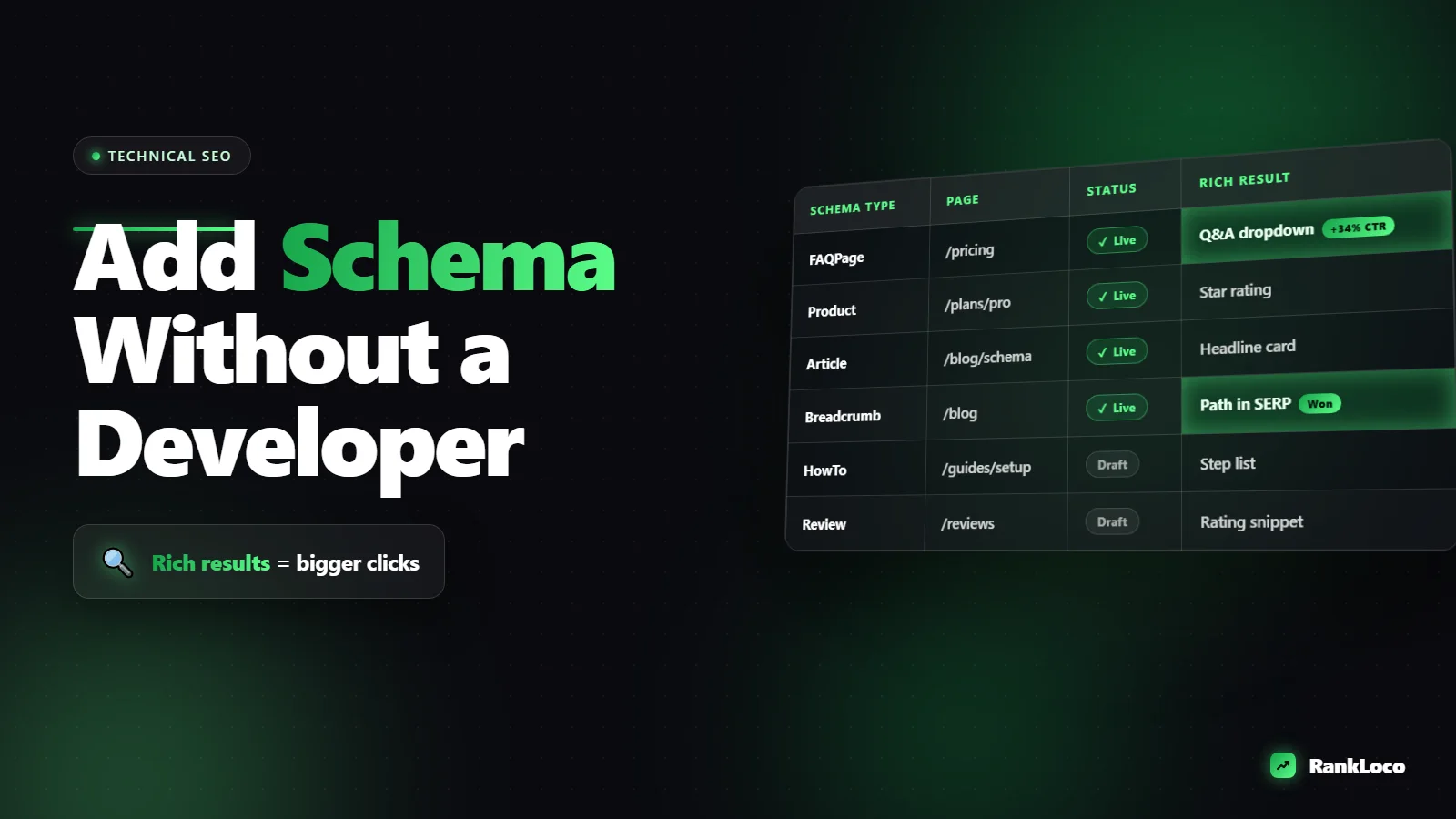
Schema markup is structured data: a small block of code that labels what your content means so search engines don't have to guess. A page might say "$29" and "4.8 stars" in plain text, but schema tells Google explicitly "this is a price" and "this is an aggregate rating." That's how you earn rich results: star ratings, FAQ dropdowns, recipe cards, event dates, and breadcrumb trails right in the search listing.
Rich results don't directly boost your ranking, but they make your listing bigger and more clickable, which lifts click-through rate. On competitive queries, a listing with review stars and price often out-earns a plain blue link sitting above it. If you care about winning more real estate in the SERP, schema pairs well with everything covered in winning SERP features.
The good news: schema is JSON-LD, a self-contained script Google recommends. It sits in the page head and doesn't touch your visible layout, so you cannot break your design by adding it. That's exactly why a non-developer can do this safely.
How to Add Schema Markup Without Coding: 4 Methods
Pick the method that matches your platform. All four skip raw HTML editing.
| Method | Best for | Difficulty | Cost |
|---|---|---|---|
| SEO plugin (Rank Math, Yoast) | WordPress sites | Easiest | Free tier works |
| Built-in CMS schema | Shopify, Wix, Squarespace | Easy | Included / app |
| Schema generator + paste | Any site with a header/footer code box | Medium | Free |
| Google Tag Manager | Sites where you can't edit templates | Medium | Free |
Method 1: WordPress SEO Plugins (No Code at All)
If you run WordPress, you likely already have a schema tool installed. Rank Math and Yoast both output schema automatically and let you customize it with dropdowns.
- Install and activate Rank Math or Yoast SEO (free versions are enough for most schema types).
- Open the post or page you want to mark up.
- In Rank Math, scroll to the SEO meta box, click the Schema tab, and choose a type (Article, Product, FAQ, HowTo, Local Business, etc.).
- Fill in the fields it asks for. The plugin builds valid JSON-LD from your input.
- Set site-wide defaults under the plugin's Titles & Meta or Schema settings so every post type gets a sensible default.
This is the fastest route for FAQ and Article schema. If you already publish blog content, add FAQ schema to posts that answer clear questions, which ties directly into how you optimize a blog post for a target keyword.
Method 2: Built-In Schema on Shopify, Wix, and Squarespace
Hosted platforms handle a lot of schema for you automatically.
- Shopify: Most themes output Product schema (price, availability, reviews) by default. To add or fix it, use an app like JSON-LD for SEO, or edit the theme's structured data section without touching Liquid logic. Review apps like Judge.me inject rating schema automatically.
- Wix: Wix generates schema for many page types and offers a "Custom" structured data field in the SEO settings of each page where you paste JSON-LD.
- Squarespace: Blog posts, products, and events get automatic schema. For anything custom, use a Code Injection block in page settings or site-wide header injection.
Before adding anything manually, run one page through the Rich Results Test to see what schema already exists. On many themes it's more than you think, and duplicating it causes errors.
Method 3: Generate JSON-LD and Paste It
This works on almost any platform that lets you add code to the page header or a code block. No coding, just copy and paste.
- Go to a free schema generator: Merkle's Schema Markup Generator or TechnicalSEO.com are the cleanest. Google's Structured Data Markup Helper also works by clicking elements on your page.
- Choose the schema type (LocalBusiness, Article, FAQ, Product, Event, Organization).
- Fill in every field. The tool builds the JSON-LD script live on the right.
- Copy the whole
<script type="application/ld+json">block. - Paste it into your page's header code area or a raw HTML/code widget, then publish.
Keep a simple spreadsheet of which page has which schema so you don't lose track as your site grows.
Method 4: Google Tag Manager (When You Can't Edit Templates)
If you have no access to templates but GTM is installed, you can inject schema through it.
- In GTM, create a new tag: Custom HTML.
- Paste your generated JSON-LD script into the HTML box.
- Set the trigger to fire only on the specific page (Page Path equals your URL) so schema doesn't appear everywhere.
- Publish the container.
One caveat: Google can read GTM-injected schema, but rendering adds a step. For your most important pages, on-page schema (Methods 1 to 3) is more reliable. Use GTM as a fallback.
Which Schema Types Should You Actually Add?
Don't mark up everything. Focus on schema that either earns a rich result or clarifies your business. Here's the priority list for most small sites.
| Schema type | Use it on | Rich result? |
|---|---|---|
| Organization | Homepage / site-wide | Knowledge panel support |
| LocalBusiness | Contact / location pages | Helps local & Maps |
| Article / BlogPosting | Blog posts | Article rich results |
| FAQPage | Pages with real Q&A | FAQ dropdowns (limited) |
| Product | Product pages | Price, stock, ratings |
| Review / AggregateRating | Products, services | Star ratings |
| BreadcrumbList | Any page with a breadcrumb | Breadcrumb trail |
| Event | Event pages | Date, venue, tickets |
| HowTo | Step-by-step guides | Step carousels |
If you run a service business or local shop, LocalBusiness schema is your highest-value target. It reinforces your name, address, phone, and hours, which supports everything in our local SEO playbook. Pair it with a well-optimized profile using our guide to ranking your Google Business Profile higher.
Validate Your Schema Before You Trust It
Invalid schema does nothing, and broken schema can trigger warnings in Search Console. Always test.
- Rich Results Test (search.google.com/test/rich-results): paste your URL or code. It shows which rich results the page is eligible for and flags errors.
- Schema.org Validator (validator.schema.org): checks that your syntax is valid schema, even for types Google doesn't turn into rich results.
- Google Search Console: after Google recrawls, check the Enhancements section for FAQ, Product, Breadcrumb reports. This shows real, indexed status over time.
Fix every error before moving on. A single missing required field (like a price with no currency) can disqualify the whole block.
Common Schema Mistakes That Get Your Markup Ignored
- Marking up content that isn't on the page. Schema must match visible content. Fake reviews or hidden FAQ answers violate Google's guidelines and can trigger a manual action.
- Duplicate schema. Your theme adds Article schema and your plugin adds it too, creating conflicts. Audit what already exists first.
- Incomplete required fields. Each type has required and recommended properties. The Rich Results Test tells you which are missing.
- Review schema on the wrong pages. Google restricted self-serving reviews. Put rating schema on product and local business pages, not on your homepage about your own company.
- Set and forget. Prices change, events pass, hours update. Stale schema is worse than none. Review it quarterly.
Where Schema Fits in Your Broader SEO
Schema is a technical win, not a content strategy. It won't rescue a thin page or a site with crawl problems. Treat it as one line item on a wider technical SEO checklist, alongside fixing crawl errors and speeding up your pages. Add schema after your titles, content, and internal links are solid.
Once your markup is live, track whether it moves anything. Watch click-through rate in Search Console and monitor how your target pages move for their keywords. You can set that up in minutes with RankLoco to track keyword rankings and see whether rich results are lifting your traffic. If you want to find more pages worth marking up, RankLoco's keyword and audit tools help you spot high-intent queries and technical gaps in one place. Start from the RankLoco homepage or browse more guides on the blog.
Quick No-Code Schema Checklist
- Run your key pages through the Rich Results Test to see existing schema.
- Pick 1 to 3 schema types that match your content (start with Organization + LocalBusiness or Article).
- Use a plugin, built-in CMS field, or a free generator to create JSON-LD.
- Paste or configure it, then publish.
- Validate every page in the Rich Results Test and fix all errors.
- Check Search Console Enhancements after Google recrawls.
- Review and update schema every quarter.
Frequently Asked Questions
Do I need coding skills to add schema markup?
No. Between SEO plugins like Rank Math and Yoast, built-in schema on Shopify, Wix, and Squarespace, free JSON-LD generators, and Google Tag Manager, you can add valid schema entirely by filling in fields and pasting a code block. You never write code from scratch or edit raw HTML logic.
Does schema markup improve my Google rankings?
Not directly. Schema helps Google understand your content and can earn rich results (stars, FAQs, prices) that increase click-through rate. Higher CTR and clearer relevance can indirectly support rankings, but schema alone won't move a page that has weak content or thin authority.
What is the difference between JSON-LD, Microdata, and RDFa?
They are three formats for structured data. JSON-LD is a separate script block Google recommends and it's the easiest to add without touching your HTML. Microdata and RDFa are woven into your visible HTML tags, which is harder to maintain. Use JSON-LD unless you have a specific reason not to.
How long until rich results appear after adding schema?
It depends on how often Google crawls your site. For active sites it can be days; for smaller or newer sites, a few weeks. Speed it up by requesting indexing in Search Console. Rich results are also never guaranteed even with valid schema.
Can adding schema markup hurt my SEO?
Only if you misuse it. Marking up content that isn't visible, faking reviews, or using spammy structured data can trigger a manual action. Valid schema that matches your on-page content is safe and cannot break your layout, since JSON-LD sits separately from your visible design.
Which free tool is best for generating schema without coding?
Merkle's Schema Markup Generator and TechnicalSEO.com's generator are the cleanest for building JSON-LD by filling in fields. Google's Structured Data Markup Helper works by clicking elements on your live page. All three are free, and all output should be checked in Google's Rich Results Test.